

Common eSIM Issues #1: APN Settings
August 7, 2026


✅Your SIM card or eSIM is installed successfully
✅your phone shows a 4G/5G signal
❌but you still can't access the internet?
This is one of the most common issues travelers encounter. In many cases, the SIM card you thought was defective might actually be working perfectly—the problem was simply an incorrect APN setting.
Let's take a closer look at what an APN is, how it works, and what you can do if your mobile data isn't working.
Contents
- What Is an APN?
- When Do I Need to Configure an APN?
- How to Manually Set Up an APN
- FAQ
What Is an APN?
APN stands for Access Point Name.
Previously, we compared an eSIM to the password that unlocks access to a mobile network. In that analogy, the APN is the network's address.
When your phone connects to the internet, it uses the APN to find the correct network gateway and then uses your SIM/eSIM credentials to establish the connection. If the APN is incorrect, it's like trying to enter through the wrong door. The network won't know where to send your data, and your connection will fail.
Actually, an APN contains information that helps mobile operators identify and manage your connection, including:
✅ Which network to connect to
✅ What type of service to use
✅ How to assign an IP address
✅ How to route your device to the internet
When Do I Need to Configure an APN?
Most modern smartphones support Automatic APN Configuration.
When you insert a SIM card or install an eSIM, your phone will usually:
- Detect the mobile carrier
- Download the correct APN settings
- Configure the network automatically
That's why many users have never heard of APN settings before.
However, if your phone fails to retrieve the correct settings automatically, you may need to enter the APN manually.
This is more common with:
- Older smartphone models
- Certain Android devices
- Travel SIM cards
- Roaming data plans
- Users who frequently switch between multiple SIM cards or eSIMs
How to Manually Configure an APN
Before you begin, make sure you have the APN information provided by your SIM card or eSIM provider.
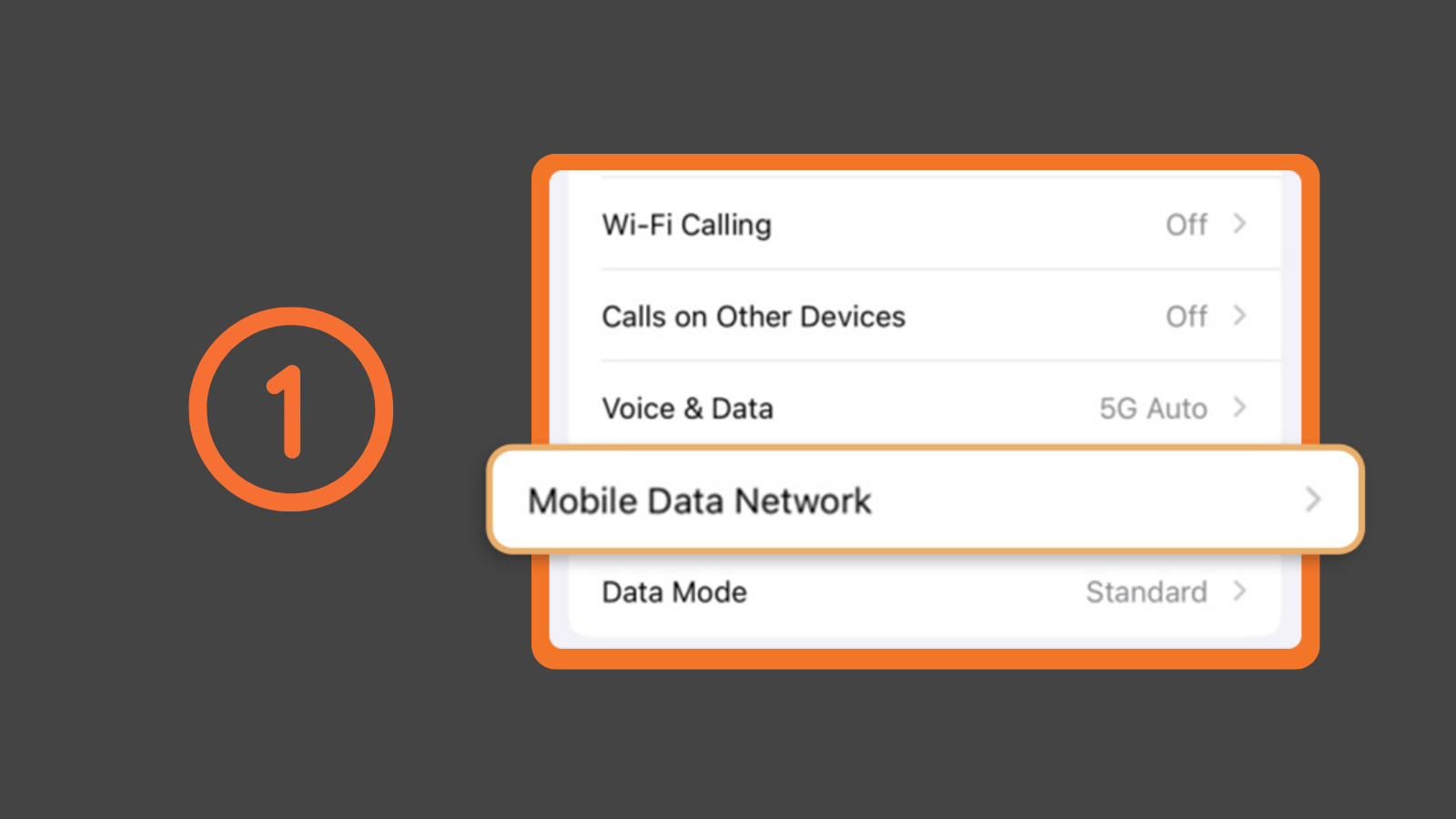
iPhone (IOS):
1. Open “Settings” → Tap “Mobile Data” (or “Cellular”) → Tap “Mobile Data Network”
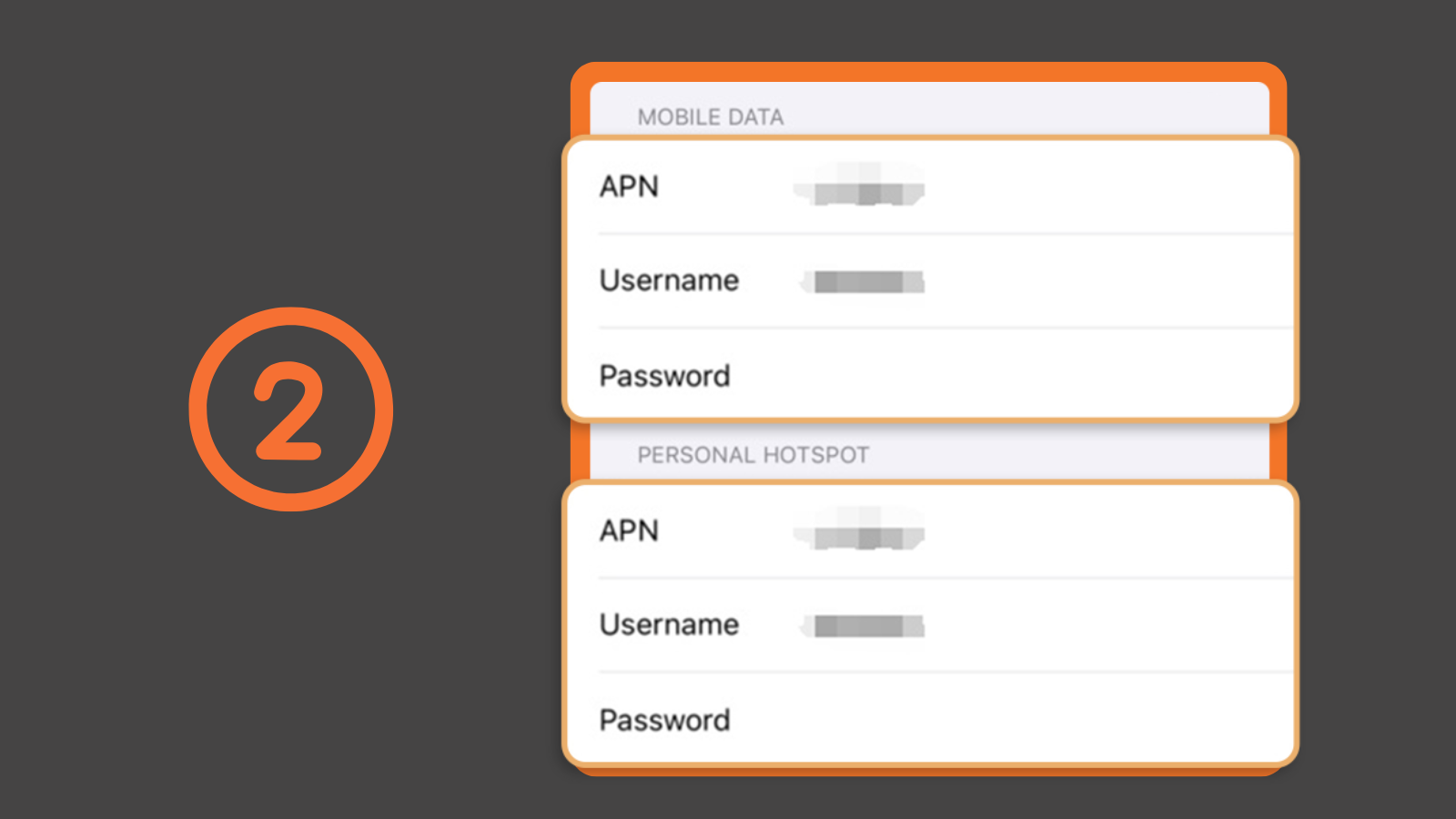
2. Enter the correct APN under the APN field (*you can leave all other fields blank unless instructed otherwise) → restart your device
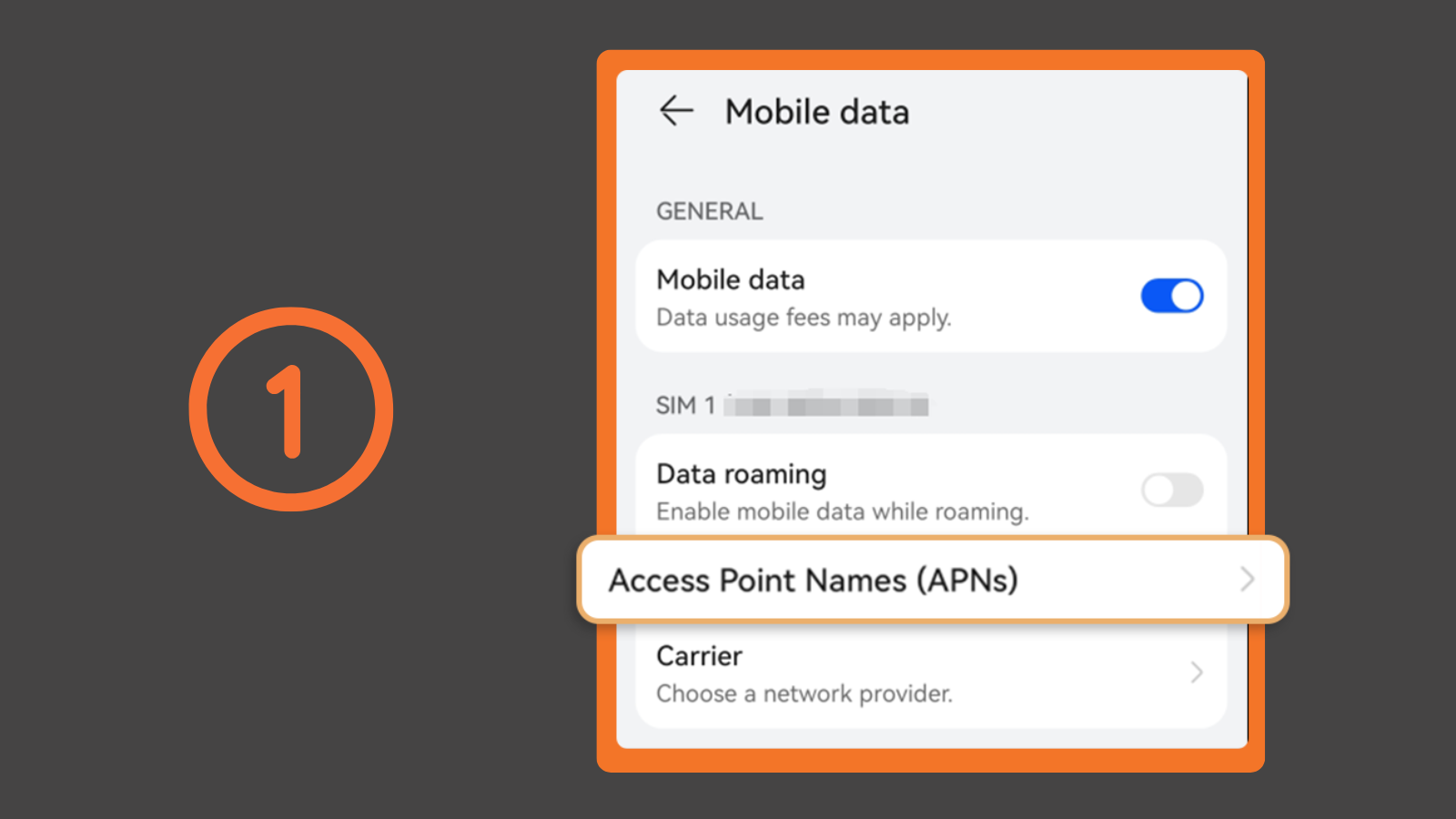
Android:
1. Open “ Settings” → select “Mobile Network” → Tap “Access Point Name (APN)” → Tap the "+" icon to create a new APN, or edit an existing one
2. Fill in APN, and save
- Enter any name in the “Name field”
- Enter the correct APN provided by your service provider in the “APN field”
- Leave other fields such as “Proxy” and “Port” as “Not Set” unless instructed otherwise
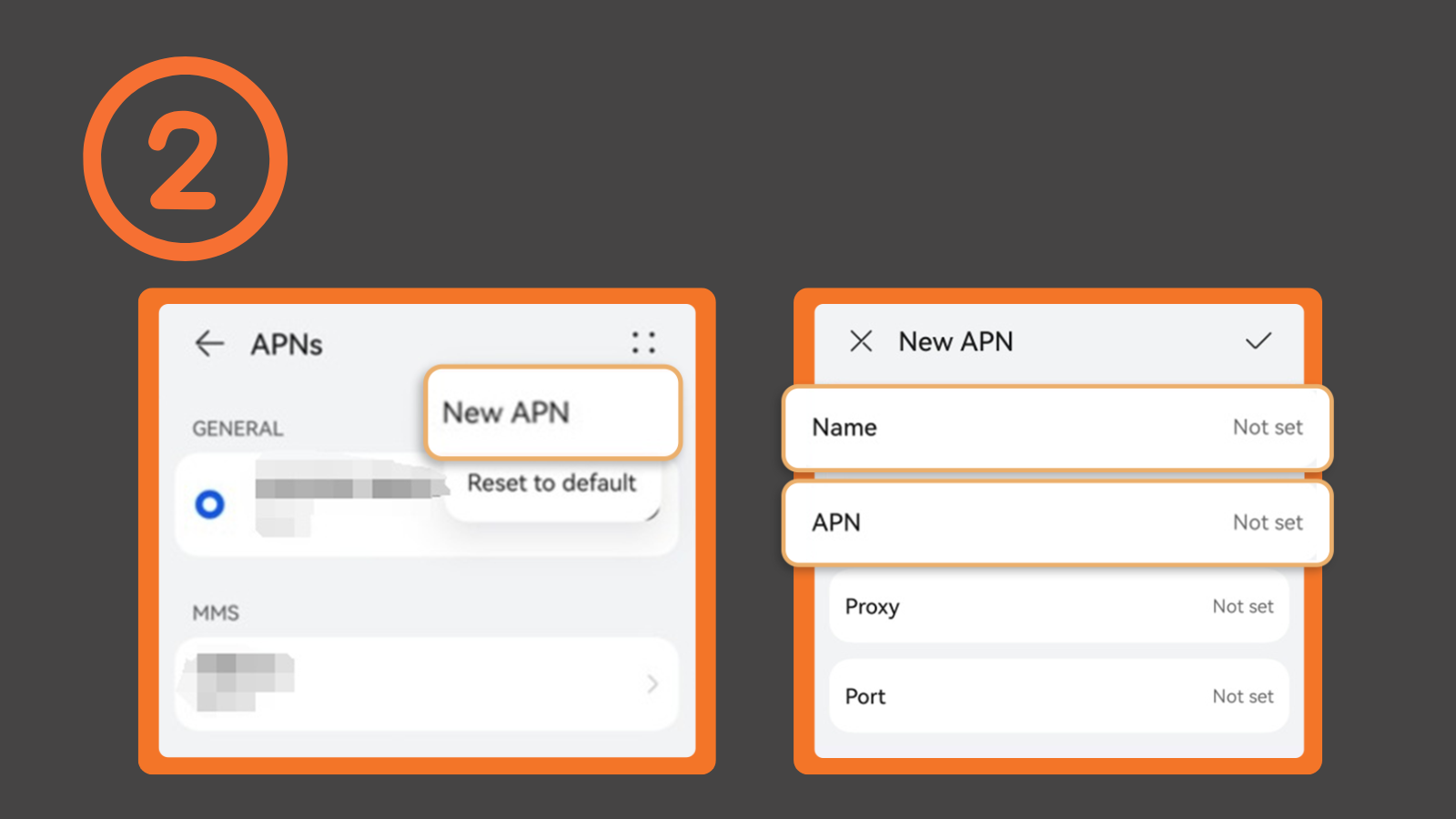
3. Select the new APN and Restart your phone
FAQ
Q1. Is the APN the same in every country?
No. APN settings vary depending on:
- The mobile carrier
- The country
- The SIM/eSIM provider
For this reason, it's always a good idea to ask your provider for the correct APN information before you travel.
Q2. Why did changing the APN affect my primary phone number's internet connection?
Normally, APN changes only affect the specific SIM card or eSIM that you are editing.
If another number is affected, you may have accidentally modified the APN settings for the wrong SIM card.
Always double-check which SIM/eSIM is selected before making any changes.
Q3. What should I do if I entered the wrong APN?
If you're unsure about the correct APN, avoid guessing.
Instead, reset the APN settings to their default values.
iPhone (IOS):
- Go to “Settings” → “Mobile Service” → “Mobile Data Network”
- Tap “Reset Settings” or “Reset” to Default
Your phone will restore the carrier's default APN settings, and the network connection should recover within a few seconds.
Android:
- Go to “Settings” → “Network & Internet” → “Mobile Network”
- Select the affected SIM card or eSIM
- Tap “Access Point Names (APN)” → Tap the “ ⋮ ” menu icon
- Select “Reset” to Default
This will remove any manually created APNs and restore the carrier's default settings.
Q4. Will incorrect APN settings damage my phone?
No. APN settings only affect how your device connects to the internet. Entering an incorrect APN will not damage your phone or SIM card.
The worst-case scenario is that mobile data won't work until the correct APN is restored.
Q5. Do I Need to Change APN Settings Frequently?
In most cases, NO.
Once your APN is set correctly, you generally won't need to change it again unless:
- You switch to a new SIM card or eSIM
- Your provider updates its APN settings
- You're using a multi-country plan that requires different APNs in different destinations
- Your mobile data suddenly stops working
Conclusion
Losing internet access while traveling can be frustrating, but don't panic.
Before assuming your SIM card or eSIM is faulty, make sure:
✅ Mobile Data is enabled
✅ Data Roaming is enabled
✅ The APN settings are correct
These simple checks solve the majority of mobile data issues experienced by travelers.
Still can't get online?
Connect to a Wi-Fi network and contact the NPN support team. We'll be happy to help you troubleshoot the issue and get you connected as quickly as possible.
Get connected for your next trip 👉 NPN Travel eSIM


