

Holafly eSIM Not Working? Step-by-Step Fixes for you



Having a Holafly eSIM not working can be frustrating, especially when you have already arrived at your destination. Common problems include Holafly unable to activate the eSIM, losing mobile data after activation, or finding that the eSIM works in one location but not another. In this guide, we'll explain why Holafly data stopped working and walk you through practical fixes for iPhone and Android.
- Why Is Holafly Not Working?
- What Should I Do If Holafly eSIM Suddenly Stopped Working?
- Holafly Not Working on iPhone?
- Holafly Not Working on Android?
Why Is Holafly Not Working?
If you search online for Holafly not working, you will find that users experience several different problems. For example, users on Reddit have reported situations where their Holafly eSIM not working problem continued even after installing the eSIM correctly. Some travelers experienced problems connecting to a local network, while others found that their mobile data stopped working after the eSIM had initially worked.
This means Holafly not working does not necessarily point to one specific problem. Your issue could be related to activation, network selection, mobile data settings, roaming, APN settings, device compatibility, or the plan itself.
Before contacting Holafly customer service, start with a few quick checks:
| Problem | What You May Notice | Possible Cause |
|---|---|---|
| Holafly unable to activate eSIM | eSIM stays on activating or cannot connect | Installation or activation problem |
| Holafly data stopped working | You suddenly have no internet | Mobile data, network, or plan issue |
| Holafly eSIM suddenly stopped working | Internet worked previously but suddenly disappeared | Network or device settings |
| Holafly eSIM card not connecting | No signal or "No Service" | Network selection or activation issue |
| Holafly eSIM with phone number not working | Calls or SMS are unavailable | Travel eSIM may be data-only |
| Wrong SIM selected | Phone has signal but no mobile internet | Another SIM is selected for mobile data |
| eSIM cannot connect abroad | No data after arriving at your destination | Network coverage or roaming settings |
| eSIM installation fails | QR code does not work | Device compatibility installation issue |
What Should I Do If Holafly eSIM Suddenly Stopped Working?
If your Holafly eSIM suddenly stopped working, don't panic. In many cases, you can restore the connection by checking a few settings.
1. Restart Your Phone
A simple restart should always be one of the first things you try when experiencing Holafly not working. Turn your phone off, wait a few seconds, and turn it back on. After restarting, check whether your Holafly eSIM card reconnects to the local network.
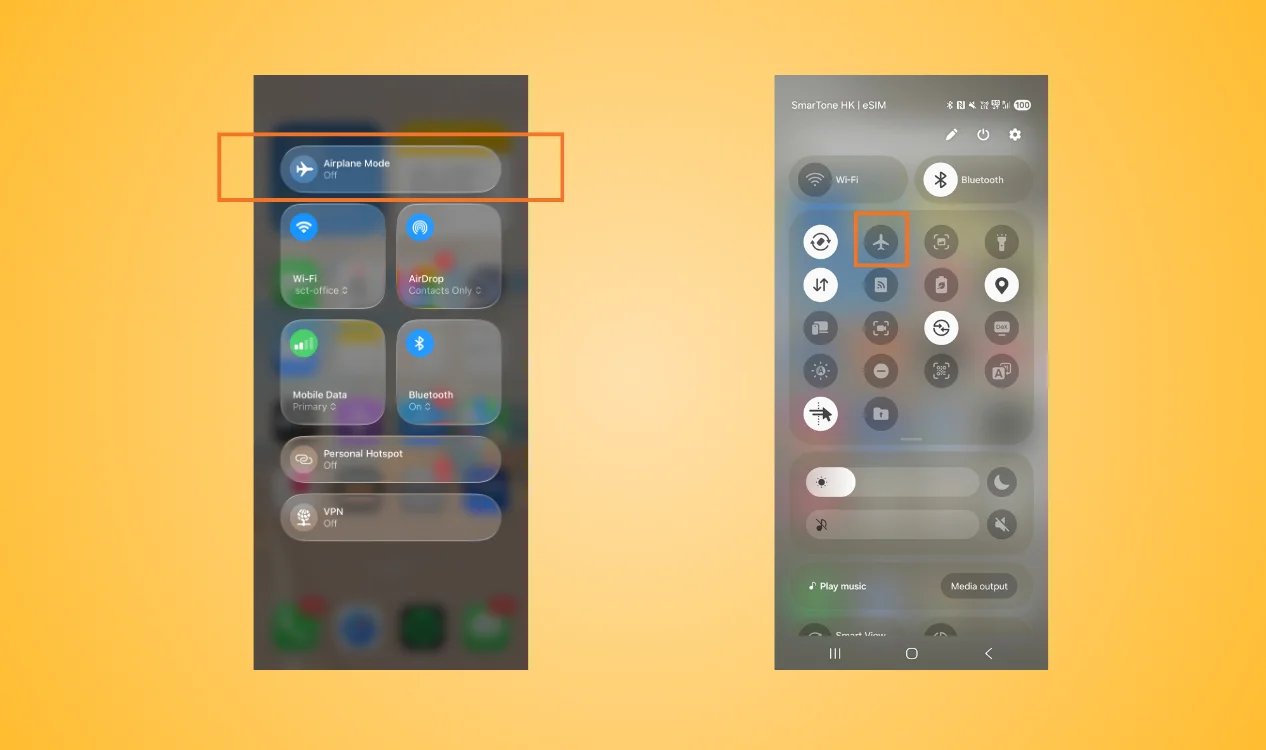
2. Turn Airplane Mode On and Off
Airplane Mode can refresh your phone's network connection. Turn on Airplane Mode → Wait 10 - 15 seconds → Turn Airplane Mode off → Wait for the network to reconnect → Try opening a website. This can sometimes fix a temporary Holafly eSIM not working problem without changing your eSIM settings.
3. Select Holafly for Mobile Data
If you have multiple SIMs installed, check your mobile-data settings. If your Holafly data stopped working, your phone may have switched back to your home SIM. Go to your cellular or SIM settings and select the Holafly eSIM card as your mobile-data line.
4. Turn Data Roaming On
If your Holafly eSIM suddenly stopped working after arriving in another country, check your data roaming settings. The exact menu may vary depending on your phone.
5. Try Automatic Network Selection
If you have an active Holafly eSIM card but cannot connect, check network selection. Start with automatic network selection. If this does not work, try manually selecting a supported network according to the instructions for your plan. This can help when Holafly not working is caused by your phone failing to register with the correct local network.
6. Check your APN
An incorrect APN can cause Holafly data stopped working even when your phone shows a signal. Check the APN information provided by Holafly and compare it with your phone's settings. Do not randomly change APN information. If you are unsure, contact Holafly customer service for the correct settings.
7. Check Your eSIM Status
If you are experiencing Holafly unable to active eSIM, check whether:
- The eSIM is installed
- The eSIM is turned on
- Your phone supports eSIM
- Your phone is unlocked
- Data roaming is enabled
- Your destination is covered
- Your plan is still active
If these settings are correct but your Holafly eSIM not working problem continues, contact Holafly customer service before deleting the eSIM.
Sometimes troubleshooting does not solve the problem. If you urgently need internet access, having another eSIM provider as a backup can be useful. You can consider NPN Travel eSIM as an alternative.
NPN Travel offers travel eSIM plans for different destinations, allowing travelers to purchase a plan online and install the eSIM on a compatible device. It offers a wide range of flexible packages and comprehensive after-sales service. NPN reviews indicate excellent value for money, making it a top choice for short trips. You can also compare different brands with this review to choose the most suitable plan for a specific trip.
Holafly Not Working on iPhone?
If you are searching for a Holafly not working iPhone, there are several iPhone settings you should check.
1. Check Whether Holafly Is Turned On
Go to: Settings → Cellular → Holafly. Make sure Turn On This Line is enabled. If you cannot see the Holafly eSIM card in your Cellular settings, the eSIM may have been installed correctly.
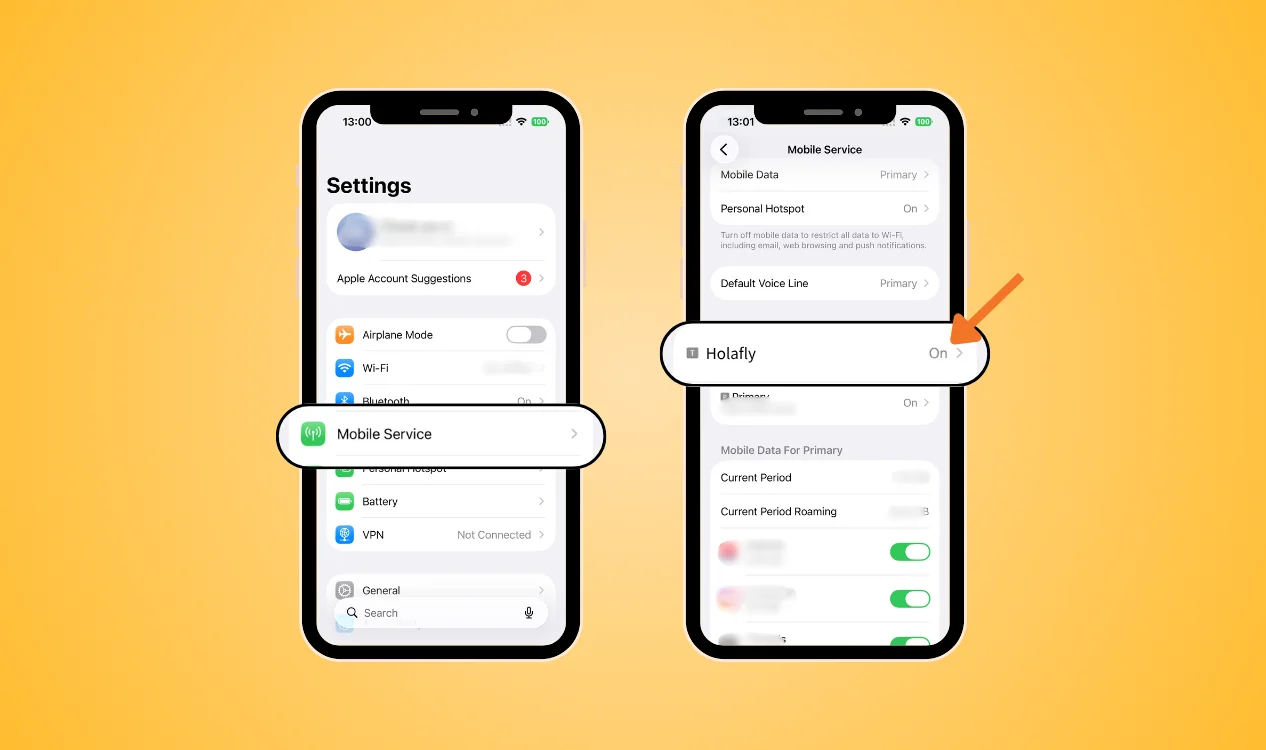
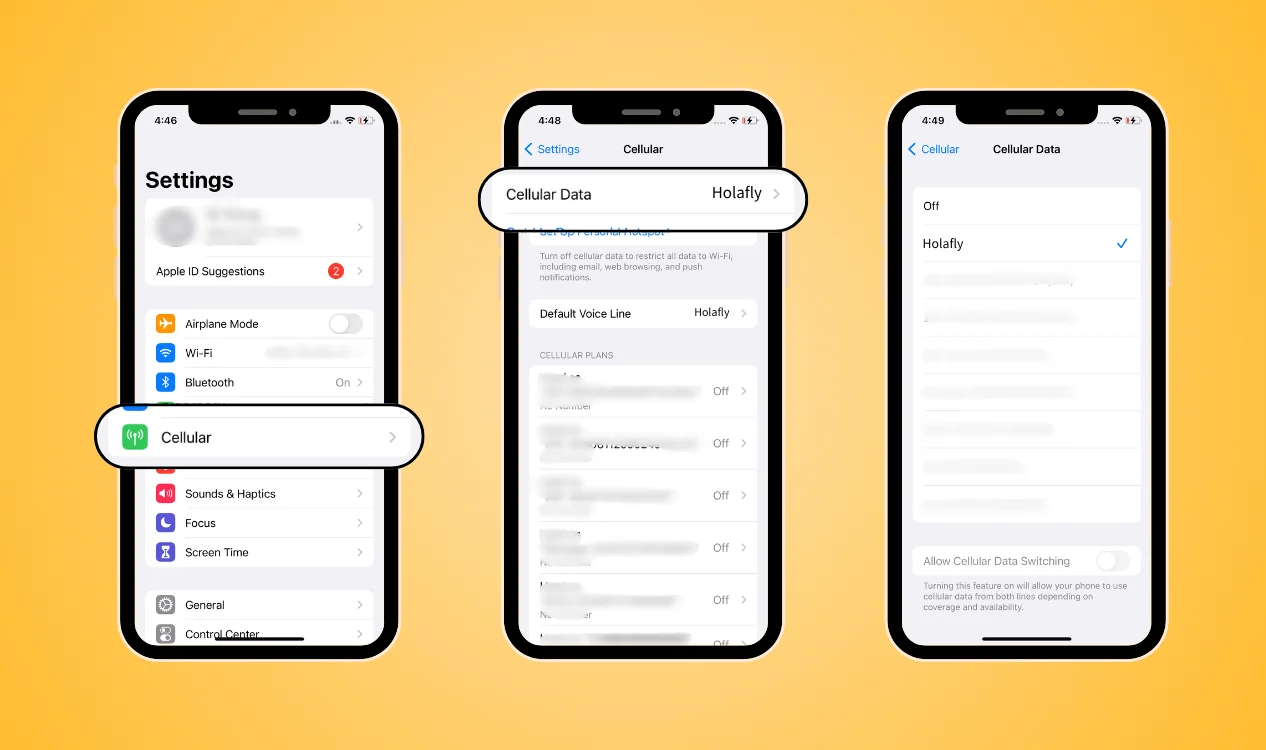
2. Select Holafly for Cellular Data
Go to: Settings → Cellular → Cellular Data → Select Holafly. This is especially important if you have both your home SIM and Holafly eSIM card installed. If the wrong SIM is selected, you may think you have a Holafly not working iPhone problem when your iPhone is actually using another SIM for mobile data.
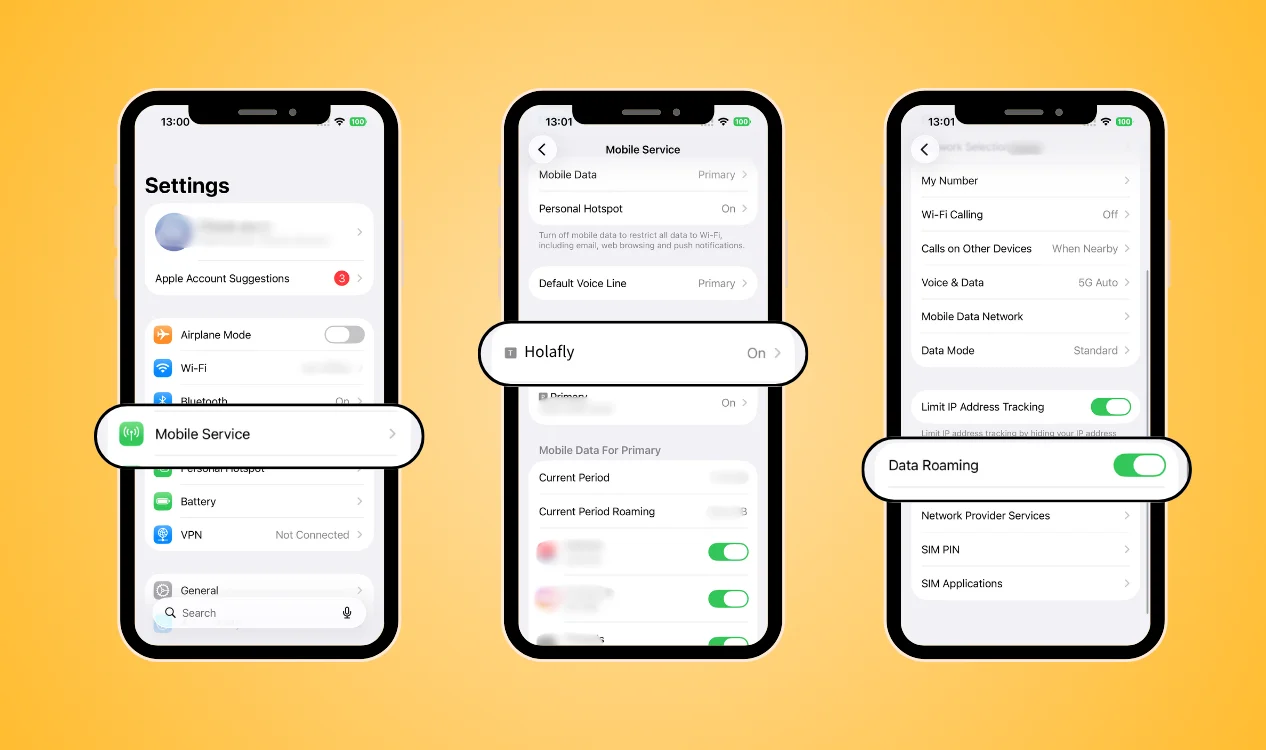
3. Turn Data Roaming On
Go to: Settings → Cellular → Holafly → Data Roaming. Turn it on if required by your travel eSIM plan. This can help when your Holafly eSIM not working issue occurs because your iPhone cannot connect to the local network.
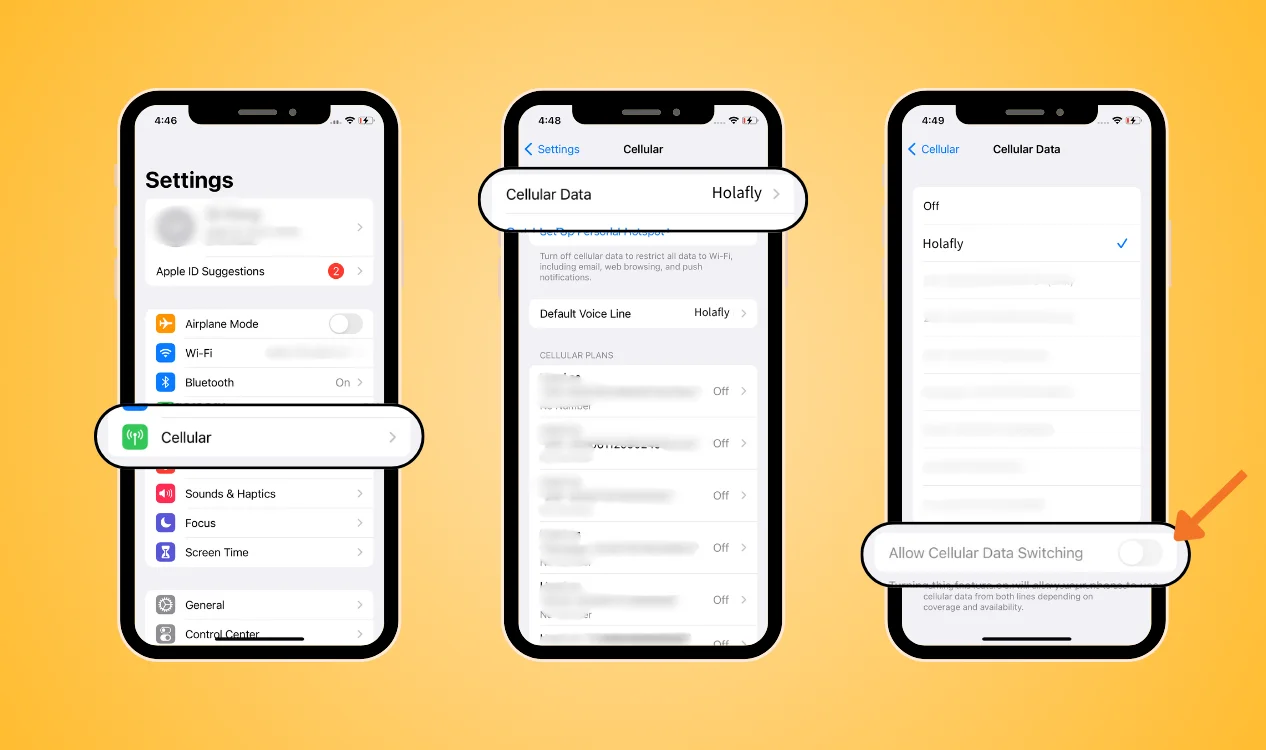
4. Check Cellular Data Switching
If you use two SIMs, the iPhone can potentially switch cellular data between them.
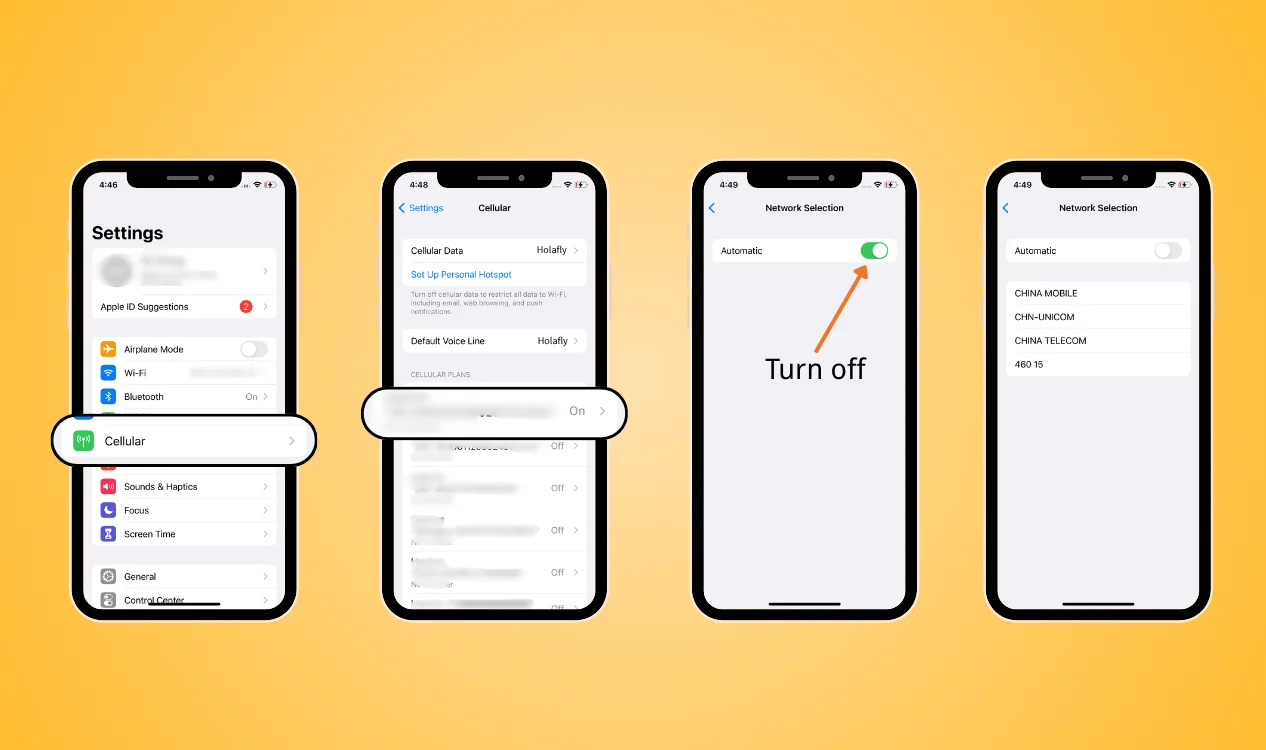
5. Check Network Selection
Go to: Settings → Cellular → Holafly → Network Selection. If your Holafly not working iPhone issue continues, turn off automatic selection first and try manually selecting a supported local network.
6. Enter APN Information Manually
Go to: Settings → Cellular → Holafly → Mobile Service Data Network → Check the APN settings. Please ensure you use the information provided by your service provider and enter it correctly.

7. Restart Your iPhone
After making changes, restart your iPhone. If the Holafly eSIM suddenly stopped working and still does not reconnect, avoid deleting your eSIM immediately. Instead, contact Holafly customer service so they can help check your plan and activation status.
Holafly Not Working on Android?
If you have an Android phone, the troubleshooting steps can vary by manufacturer. If you are experiencing Holafly not working Android, start with your SIM settings.
1. Check Your SIM Manager
On many Samsung phones, go to: Settings → Connections → SIM Manager. Make sure the Holafly eSIM card is enabled. If you cannot find the eSIM, check your Android compatibility and ensure your eSIM is installed and activated successfully.
2. Select Holafly for Mobile Data
Make sure Holafly is selected as your preferred SIM for mobile data. If your Holafly data stopped working, your phone may have selected your physical SIM instead.
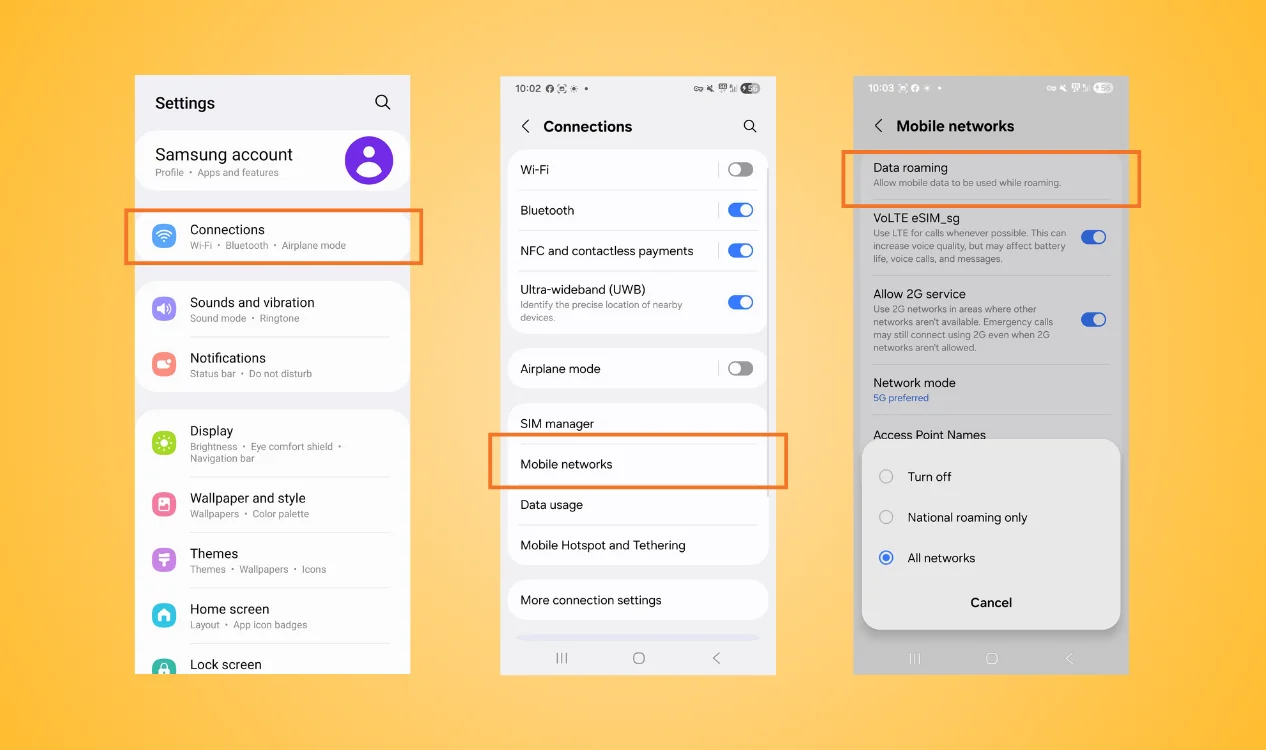
3. Turn Data Roaming On
Open your Holafly eSIM card settings and turn on Data Roaming if required. This is particularly important when your Holafly eSIM suddenly stopped working after arriving in another country.
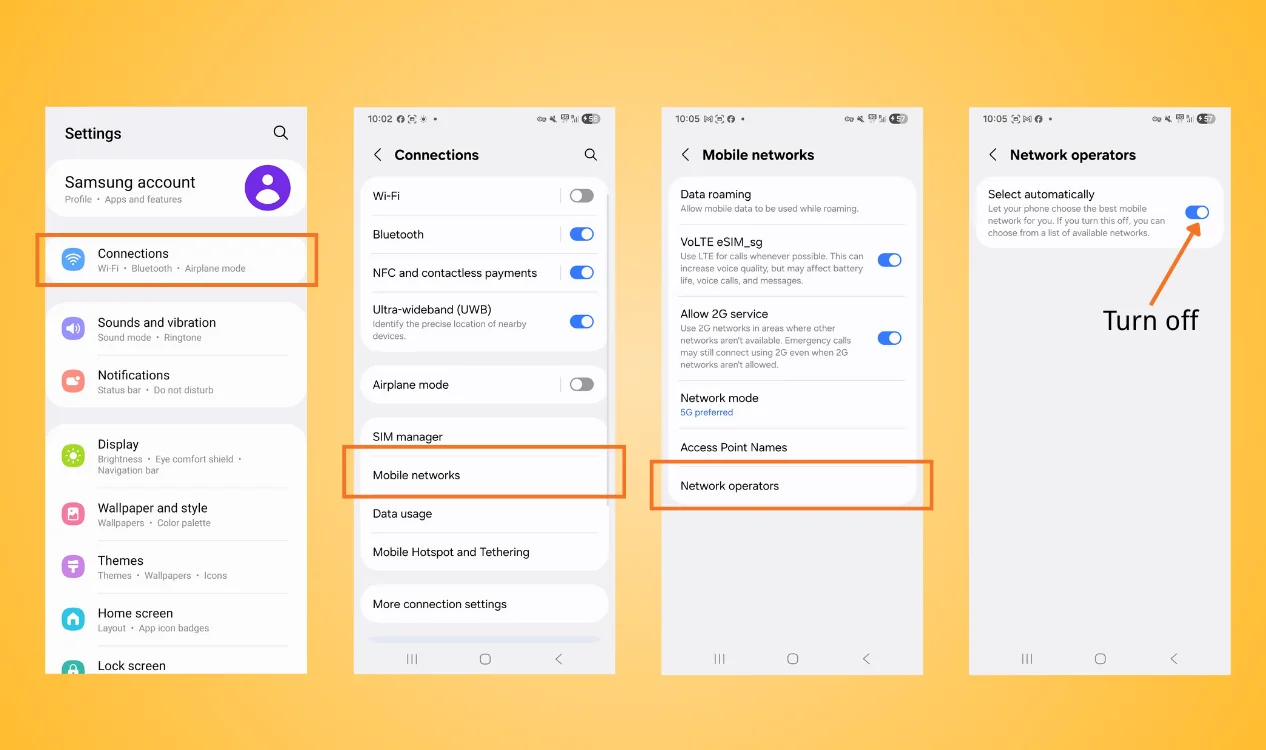
4. Check Network Selection
Start with automatic network selection. If your Holafly not working Android issue continues, try manually selecting a supported network. For Samsung users experiencing Holafly not working Samsung, you can usually find this option under the mobile network settings.
5. Check Your APN
If your Android phone has signal but no internet, check APN. Go to your mobile network settings and find Access Point Names (APN). Compare the APN information with the instructions provided by Holafy. An incorrect APN can cause Holafly data stopped working even when your phone shows network bars. Learn more about how an APN works on Android.

6. Restart Your Android Phone
After changing the settings, restart your phone and test the connection again. Instead, check your plan, destination coverage, and device compatibility before deleting the Holafly eSIM card on Android. If necessary, contact Holafly customer service for additional support.
Conclusion
A Holafly eSIM not working problem can happen because of incorrect mobile-data settings, roaming, network selection, APN configuration, activation issues, or device compatibility. Whether you are dealing with Holafly not working iPhone, Holafly not working Android, or Holafly not working Samsung, checking your eSIM and network settings should be your first step.
If your Holafly eSIM suddenly stopped working and the problem cannot be fixed, NPN Travel eSIM can be a convenient alternative. Having a backup eSIM option can help you stay connected when your Holafly data stopped working, especially when you are already traveling and need internet access.


