What Are APN Settings on iPhone and How to Change Them?



APN stands for Access Point Name and helps your iPhone connect to your carrier’s mobile data network. If your iPhone is connected to a mobile network but you still cannot access the internet, your APN settings on iPhone may be one of the things to check. In this guide, we’ll explain what APN settings are, when you need them, and how to change APN on iPhone step by step.
- What Are the iPhone APN Settings?
- When Do I Need the Configuration APN iPhone?
- Why Do I Need to Setup APN on iPhone?
- What Are the Steps of APN Setup for iPhone?
- FAQ of APN Settings iPhone
What Are the iPhone APN Settings?
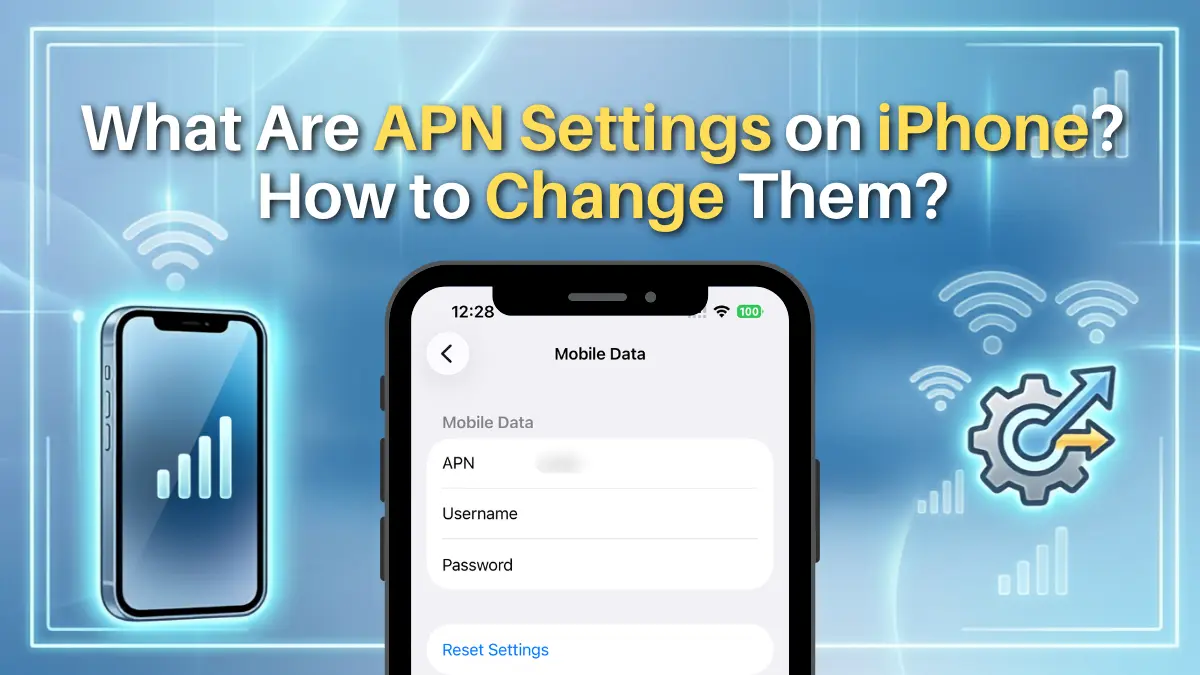
Access Point Names in iPhone defines the network path that your iPhone uses to connect to mobile data services. In simple terms, APN settings tell your iPhone how to connect to your carrier’s cellular data network.
When you use a SIM card or eSIM for mobile data, your carrier normally provides the correct APN settings on iPhone automatically. However, some carriers may require you to set up APN on iPhone manually before mobile data can work properly.
The exact APN information depends on your carrier or eSIM provider. Therefore, you should always use the APN details provided by your provider rather than guessing the settings. Incorrect APN settings can cause your mobile data connection to stop working. Apple recommends checking with your carrier before changing APN on iPhone.
When Do I Need the Configuration APN iPhone?
In general, you do not need to do APN configuration iPhone manually. However, check or configure your APN on iPhone if you facing situations such as:
- Your SIM or eSIM is installed, but mobile data does not work
- You have changed to a new carrier or mobile data provider
- You are using a travel eSIM in another country with a multi-region package
- You have recently changed or reset your iPhone
- Your carrier specifically asks you to set up APN on iPhone
- Your mobile data connection stops working after changing network settings
If you have just installed an eSIM, first make sure the eSIM is activated, the correct line is selected for cellular data, and cellular data is turned on. iPhone normally connects to the carrier network automatically when the SIM or eSIM is activated correctly.
Why Do I Need to Setup APN on iPhone?
Configuring APN on iPhone can help your device establish the correct connection with your mobile network. Here are some of the main benefits:
1.Troubleshoot Mobile Data Issues
APN settings on iPhone are one of the settings you can check when troubleshooting a mobile data problem. However, APN is not always the cause. You should also check whether cellular data is enabled and whether the correct SIM/eSIM line is selected.
2.Connect to a New Carrier or eSIM
When switching to a new mobile provider, your iPhone may need the provider's APN information. This can be particularly relevant when using a travel eSIM from a different provider.
3.Restore Mobile Data Connection
Sometimes the iOS APN is getting wrong, manually setting APN on iPhone can help your device establish the correct connection with your mobile network.
What Are the Steps of APN Setup for iPhone?
There are two common ways to set up APN on iPhone: automatic configuration and manual configuration. Check the APN information provided by your carrier before changing anything.
Method 1: Automatic APN setup
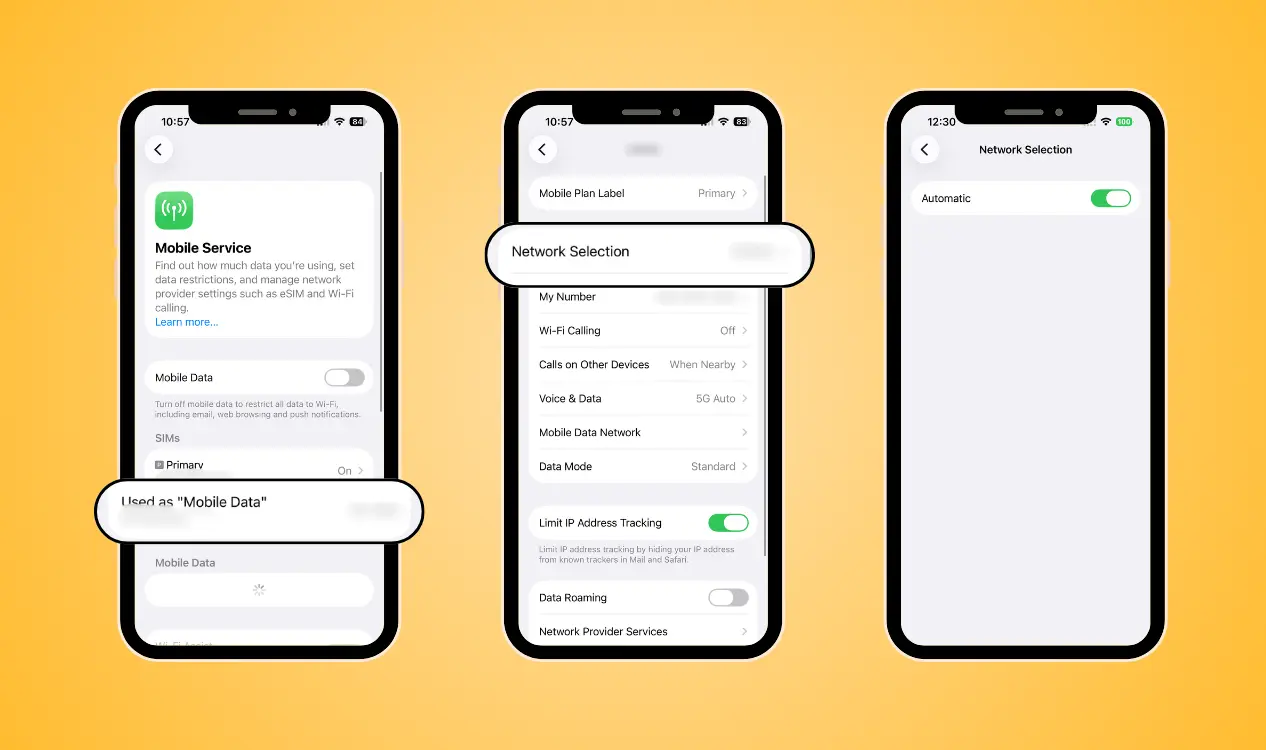
iOS APN is always setted automatically. Just simply insert your SIM and wait for the internet connection with these steps:
- Step 1: Insert your SIM card or install your eSIM
- Step 2: Open Settings on your iPhone
- Step 3: Tap Mobile Service
- Step 4: Choose the right SIM or eSIM
- Step 5: Tap Network Selection
- Step 6: Automatic APN configuration iPhone is on
Method 2: Manually Configure APN on iPhone
If problems have occurred or your provider is required, you can enter the information of APN on iPhone. Simply follow the steps:
- Step 1: Open Settings → Mobile Service
- Step 2: Tap Mobile Data Network
- Step 3: Choose the right SIM or eSIM
- Step 4: Fill in the APN field with the information provided by official
- Step 5: Make sure the information is correct and return to the previous screen. The settings should normally save automatically
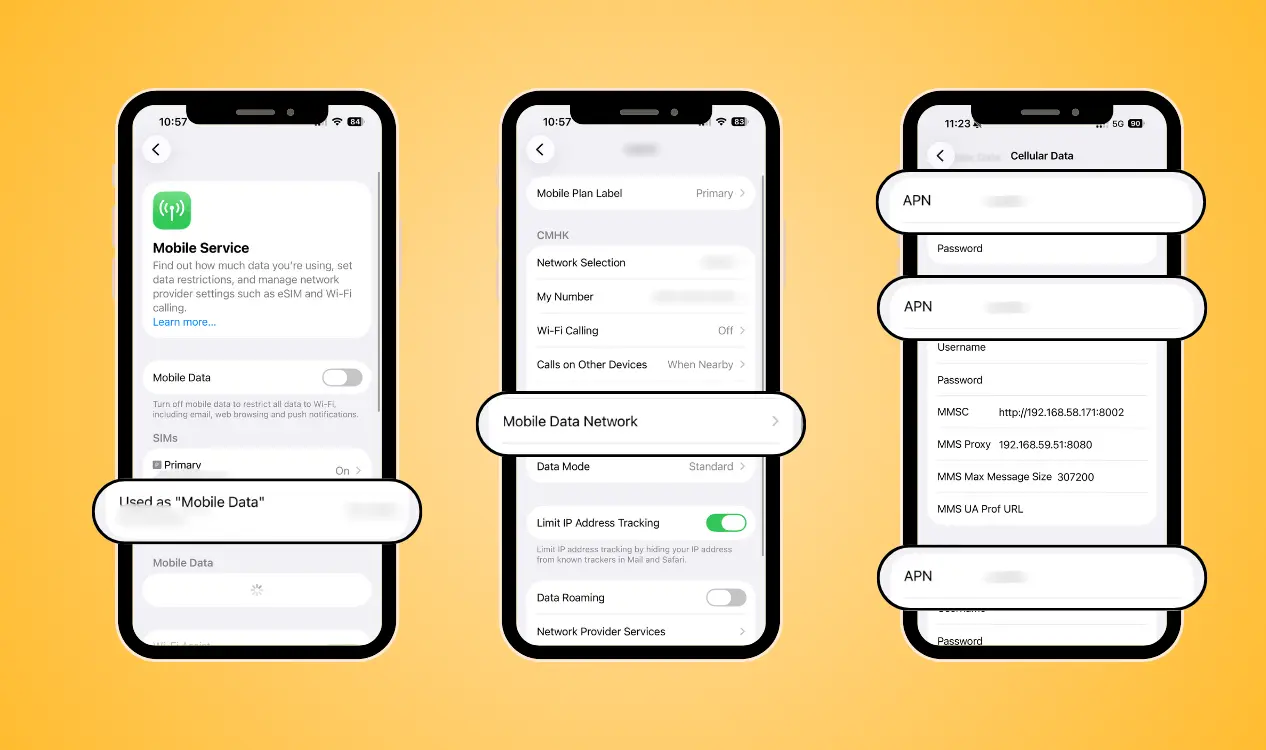
If you are using a NPN Travel eSIM and you need to set up APN on iPhone, the APN information is provided in the confirmation email with the activation code. You can contact their customer support anytime when you need help.
FAQ of APN Settings iPhone
What should I do if iPhone APN settings missing?
If you cannot find the APN menu on your iPhone, it means that your carrier does not allow manual APN configuration iPhone. In this case, contact your carrier or eSIM provider for assistance.
Final Thought
Knowing how to change APN on iPhone can be useful when your mobile data does not work as expected. In most cases, APN settings on iPhone are configured automatically, but some situations may require you to check or enter the APN manually. It is never too much to ensure the settings.
For NPN Travel eSIM users, iOS APN is setted automatically, which you can find in the confirmation email with your activation code. It's very easy to do, just follow our official tutorial and you'll have it down in no time!