Airalo eSIM Not Working? Quick Trouble shooting Guide



If you are an Airalo eSIM user and find your Airalo not working, you may see issues such as no internet connection, failed activation, or a message saying your device is not compatible. Don't worry. Many of these problems can be fixed with a few simple settings. This guide explains the common causes and what to do when your Airalo eSIM is not working.
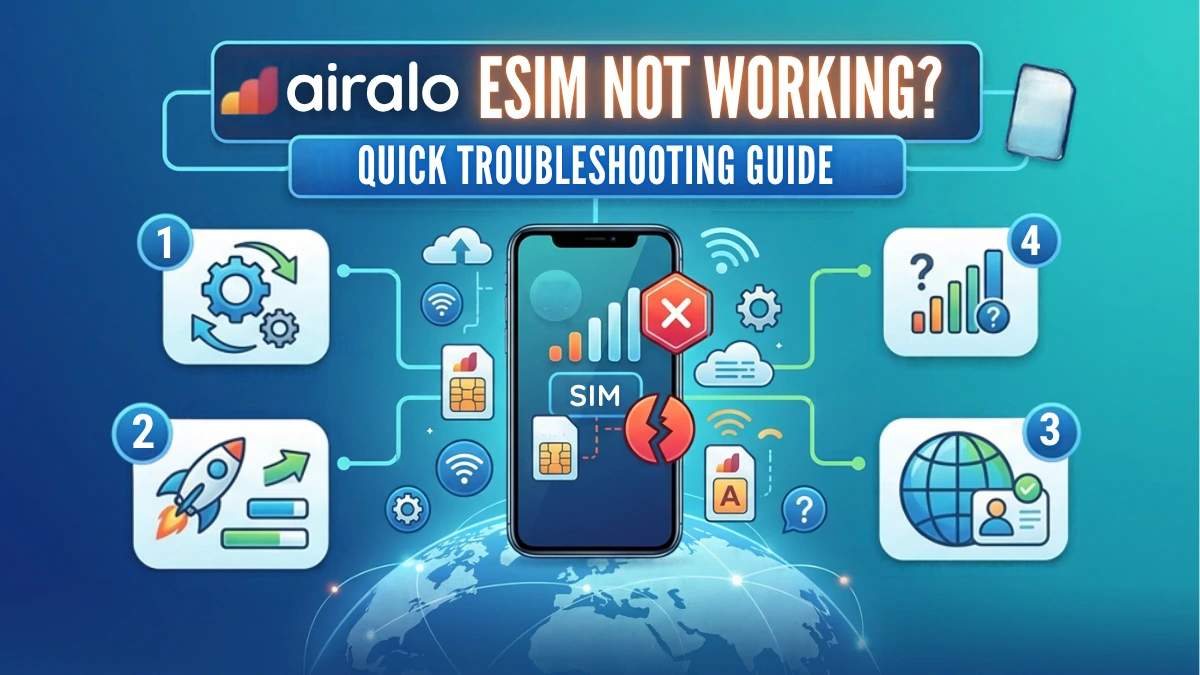
- Why Is Airalo Not Working?
- What to Do If Airalo eSIM Not Working iPhone/Android?
- Airalo eSIM Stuck on Activating?
- Why Does Airalo Say My Device Is Not Compatible?
Why Is Airalo Not Working?
Wondering why Airalo eSIM is not working? These are several possible reasons why Airalo eSIM not working on your phone:
- Your phone is not eSIM-compatible: Some devices, regional models, or carrier-locked phones may not support travel eSIMs. This can cause an Airalo eSIM not working problem before you even start using the plan. Check the eSIM compatibility for iPhone and Android.
- The eSIM was not installed correctly: If the installation failed or the eSIM profile was not added properly, Airalo may not connect.
- The eSIM has not been activated: If you are experiencing Airalo eSIM not activating, your phone may not have connected to a supported network yet.
- Your Airalo plan has expired: An expired plan will not provide mobile data, which can look like an Airalo not working issue.
- You have used all your data: If your data allowance has been completely used, your Airalo eSIM may stop providing internet access. It is important to manage and control your data consumption during travels.
- Airplane Mode is turned on: Airplane Mode disables your cellular connection and can make your Airalo eSIM appear to be not working.
- Incorrect APN settings: Incorrect Airalo eSIM APN settings can prevent the eSIM from accessing mobile data.
- Data roaming is disabled: Many travel eSIMs require data roaming to be turned on. If roaming is disabled, your Airalo eSIM may be connected to a network but still have no internet.
- Another SIM or eSIM is interfering: If another SIM is selected for mobile data, Airalo may be installed correctly but still appear to be Airalo eSIM not working.
- The phone is connected to the wrong network: Your Airalo plan may only work with specific local network operators.
What to Do If Airalo eSIM Not Working iPhone/Android?
If your Airalo eSIM problem continues, don't delete the eSIM immediately. Try these troubleshooting methods first.
- Check Your Airalo Plan
The first thing to check when Airalo eSIM not working is your plan status. Make sure your Airalo plan:- Has not expired
- Still has available data
- Is valid in your current destination
- Has not already been fully used
- Restart Your Phone
A restart can refresh your cellular connection and allow your phone to reconnect to a supported local network. This is a simple step, but it can sometimes resolve an Airalo not working issue. - Turn Airplane Mode On and Off
Another quick fix for Airalo eSIM not working is to refresh your network connection. Turn Airplane Mode on for around 10-30 seconds, then turn it off. Your phone will search for available networks again. This is usually possible if your eSIM was previously connected but suddenly stopped working. - Make Sure Your Airalo eSIM Is Enabled
Your Airalo eSIM must be switched on before it can provide mobile data. If the Airalo eSIM is turned off, your phone will not be able to connect through it. - Select Airalo for Mobile Data
If you have your regular SIM and Airalo eSIM installed at the same time, check which SIM is selected for mobile data. - Turn on Data Roaming
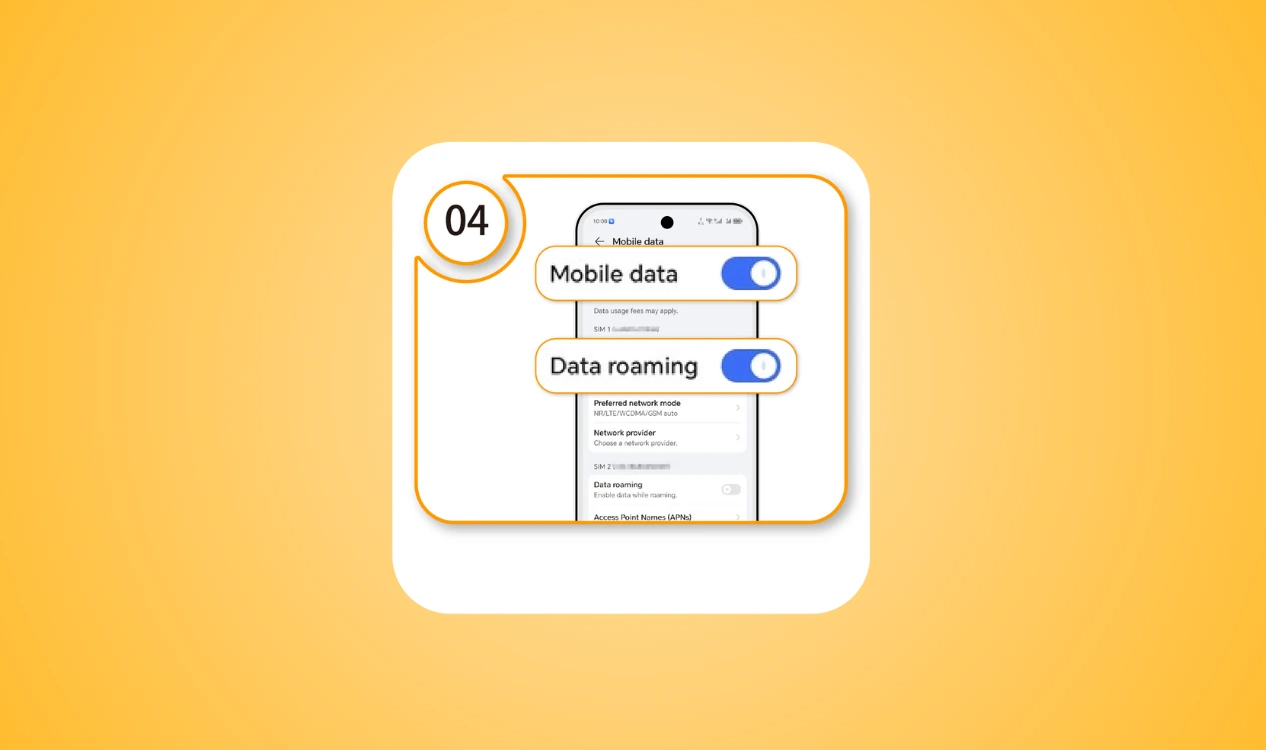
Travel eSIMs commonly require Data Roaming because they connect to partner networks outside your home carrier's network. Turn on data roaming for the eSIM and try connecting again. - Check Airalo eSIM APN Settings
Check the Airalo eSIM APN settings if your phone shows a mobile network but you cannot access the internet. Go to your mobile network settings and compare the APN with the information provided by Airalo for your specific eSIM plan. The APN can vary depending on the plan and destination, so don't enter a random APN from another provider. - Manually Select a Supported Network
Sometimes your phone automatically connects to a network that is not supported by your Airalo plan. Try changing the network selection if your Airalo eSIM is installed but Airalo eSIM not working.
First, try automatic network selection. If that does not work, turn automatic selection off and choose a supported local network manually. - Try Another Travel eSIM
If you have tried the troubleshooting steps above and your Airalo eSIM is still not working, another option is to use a different travel eSIM.
For example, NPN Travel eSIM provides travel data plans across 150+ countries and regions. If Airalo is not connecting during your trip, switching to another eSIM provider can be an alternative way to get back online.
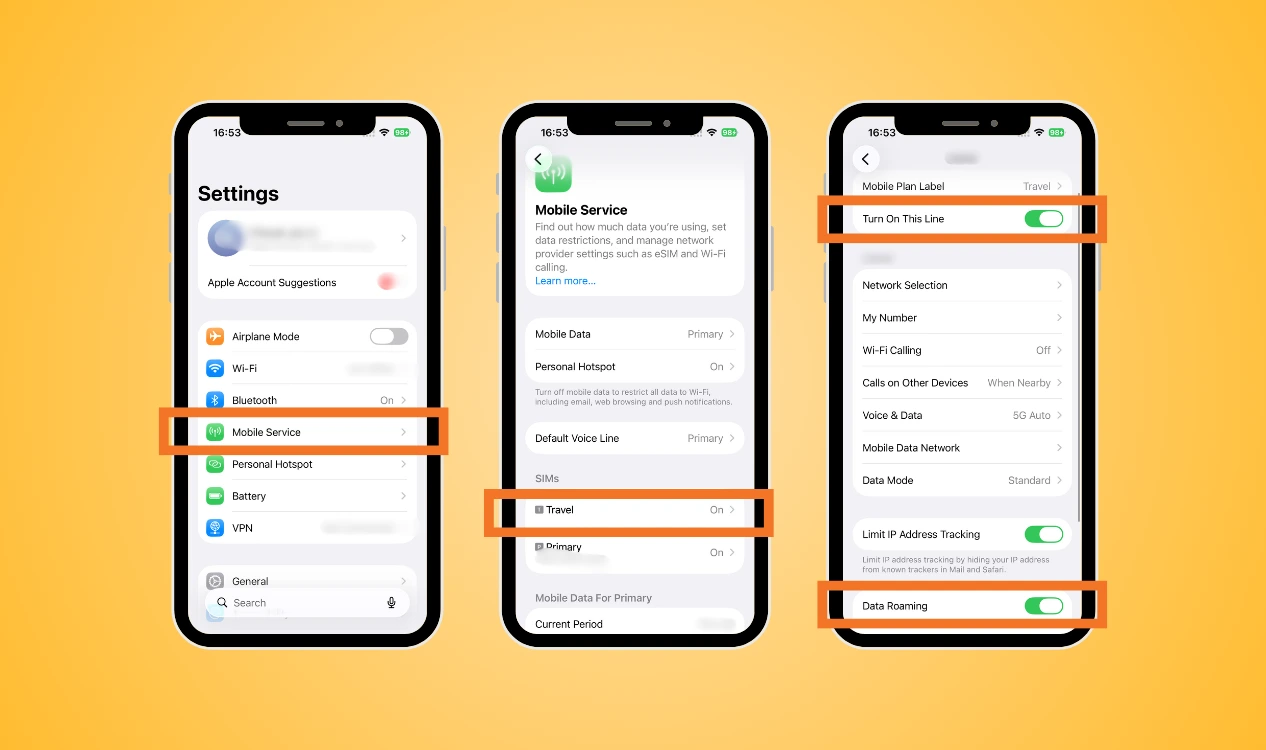
Quick Check for Airalo eSIM Not Working iPhone
Settings → Cellular/Mobile
Then check:
- Airalo eSIM is turned on
- Data Roaming is on
- APN settings are correct
- Check your network selection
- Restart your iPhone
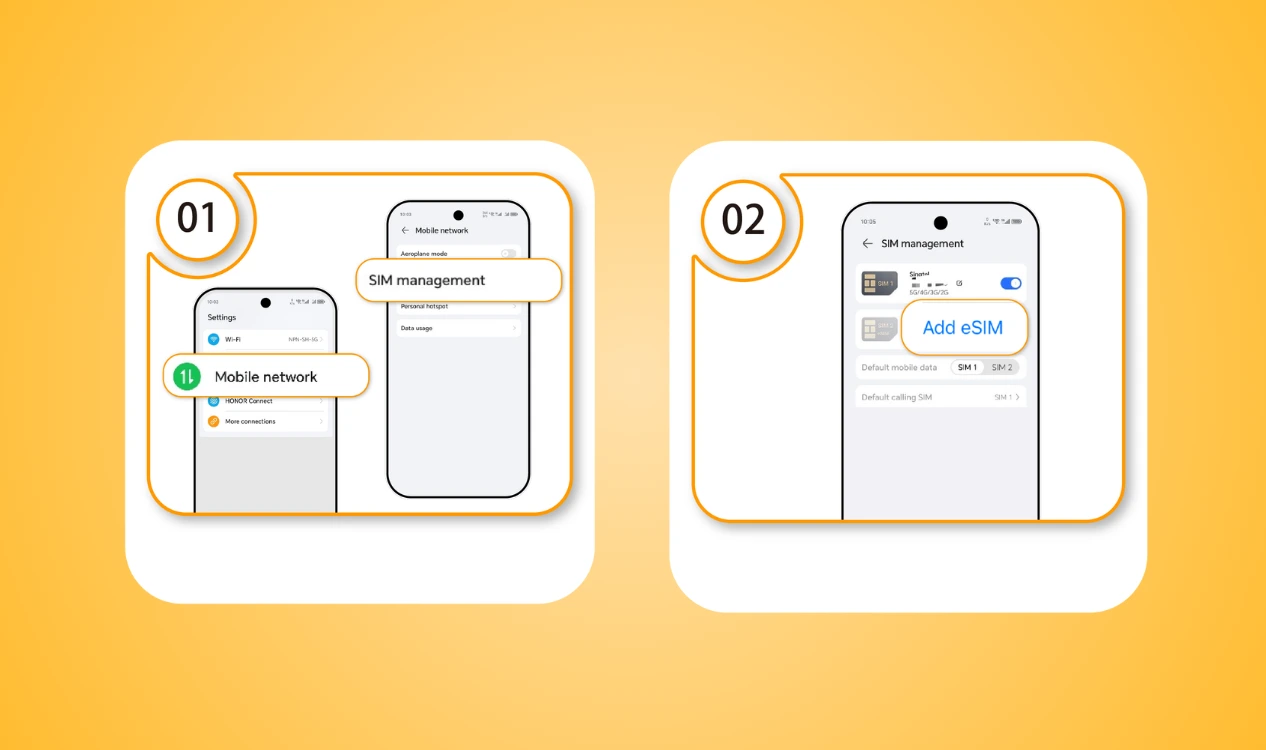
Quick Check for Airalo eSIM Not Working Android
Settings → Connections → SIMs
Then check:
- Airalo eSIM is enabled
- Airalo is selected for mobile data
- Data roaming is enabled
- Check APN settings
- Network selection with a supported network
Airalo eSIM Stuck on Activating?
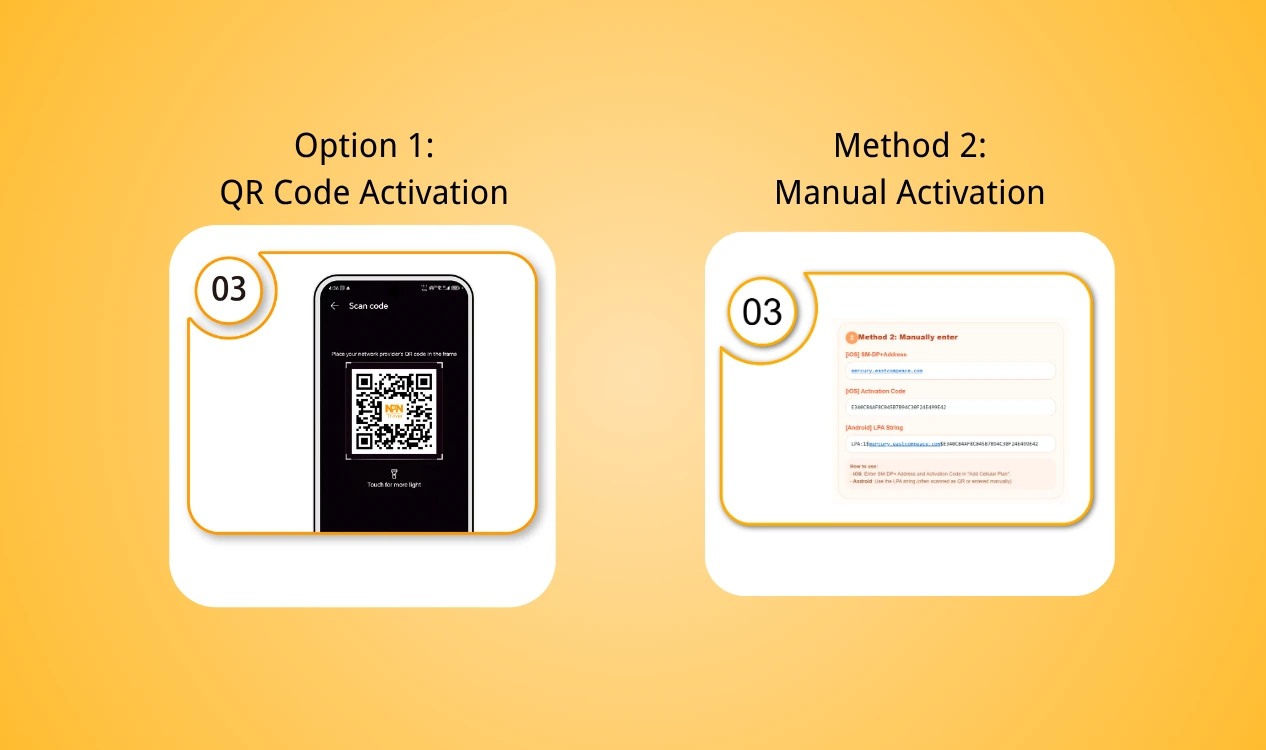
If your Airalo eSIM stuck on activating, don't immediately assume that the eSIM installation has failed. An Airalo eSIM can remain in an activating or connecting state because your phone has not connected to a supported local network yet. Other possible reasons include disabled data roaming, incorrect cellular settings, or installing the eSIM before reaching your destination.
If you cannot receive a confirmation email, you may also be stuck from activation. Airalo not sending verification code problems may be because of:
- Spam or junk by your phone
- Request for code too frequently
- Poor internet connection
- Email or phone number is incorrect
- Verification services is temporarily delayed
Why Does Airalo Say My Device Is Not Compatible?
If the Airalo app says your device is not compatible, try these checks:
- Restart your phone
- Go to Settings → Cellular, and check if both your Airalo eSIM and your home eSIM appear
- Check carrier lock
- Check your phone's region and model. Some models sold in Hong Kong or mainland China have different SIM configurations from the international version.
Final Thought
An Airalo eSIM not working problem can happen for many reasons, from incorrect APN settings and disabled data roaming to network selection, device compatibility, or an expired data plan. If you experience Airalo not working, check your eSIM, mobile data, roaming, APN, and network settings before deleting the eSIM.
For Airalo eSIM not activating, or Airalo eSIM not working iPhone/Android problems that cannot be resolved, you can also consider another travel eSIM such as NPN Travel eSIM. It can be an alternative way to stay connected while traveling.