Exclusive Step-by-Step APN Settings [2026 Guide]



Installed an eSIM or SIM card but can't connect to the internet even though your phone shows a 4G or 5G signal? You have to check APN setting. APN, or Access Point Name, helps your device establish a connection to your mobile network's data service. In this guide, you'll learn what is APN and how to set access point name on both iPhone and Android.
What Is APN?
APN stands for Access Point Name. It is a setting that tells your phone how to connect to a carrier’s mobile data network. Simply put, you can think of APN as a gateway between your phone and the carrier’s mobile data network. When the correct APN settings are configured, your device can establish the appropriate connection for accessing mobile internet.
APN access the network with the information of your device’s mobile data. Depending on the carrier, an APN configuration may include information such as the APN name, username, password, proxy, and other network parameters.
If your SIM or eSIM provider requires a specific APN and your device does not have the correct configuration, you may experience problems such as:
- Mobile data not working
- No internet connection despite showing 4G or 5G
- Unable to access websites or apps using cellular data
- An eSIM connection to a network but not providing internet access
How to Check APN Setting?
Many carriers automatically provide the required APN settings when you insert a physical SIM or install an eSIM. However, it is still a good idea to check APN settings. The steps are slightly different between iPhone and Android.
How to access APN settings on iPhone?
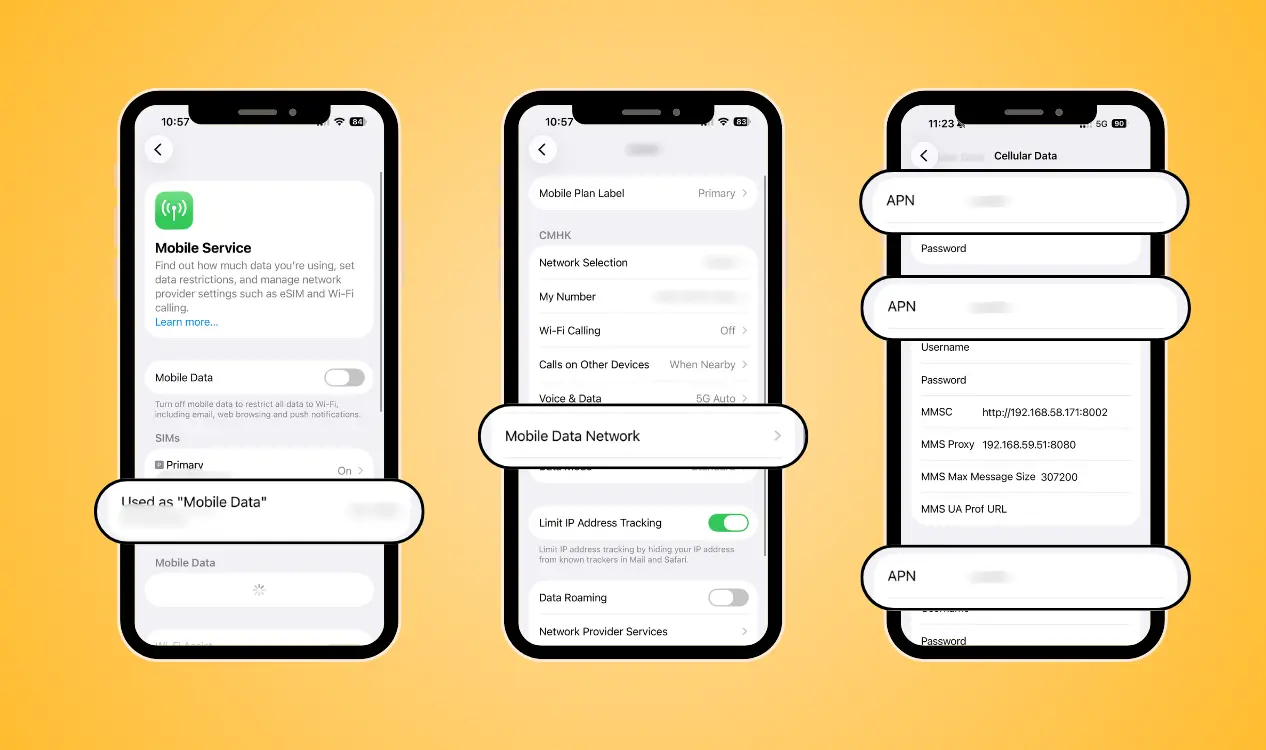
Generally, you can check your APN settings on iPhone by following these steps:
- Open Settings → Tap Mobile Service
- Select the eSIM you are using
- Tap Mobile Data Network
- Check the APN iPhone information displayed under the section
APN settings for Android phones
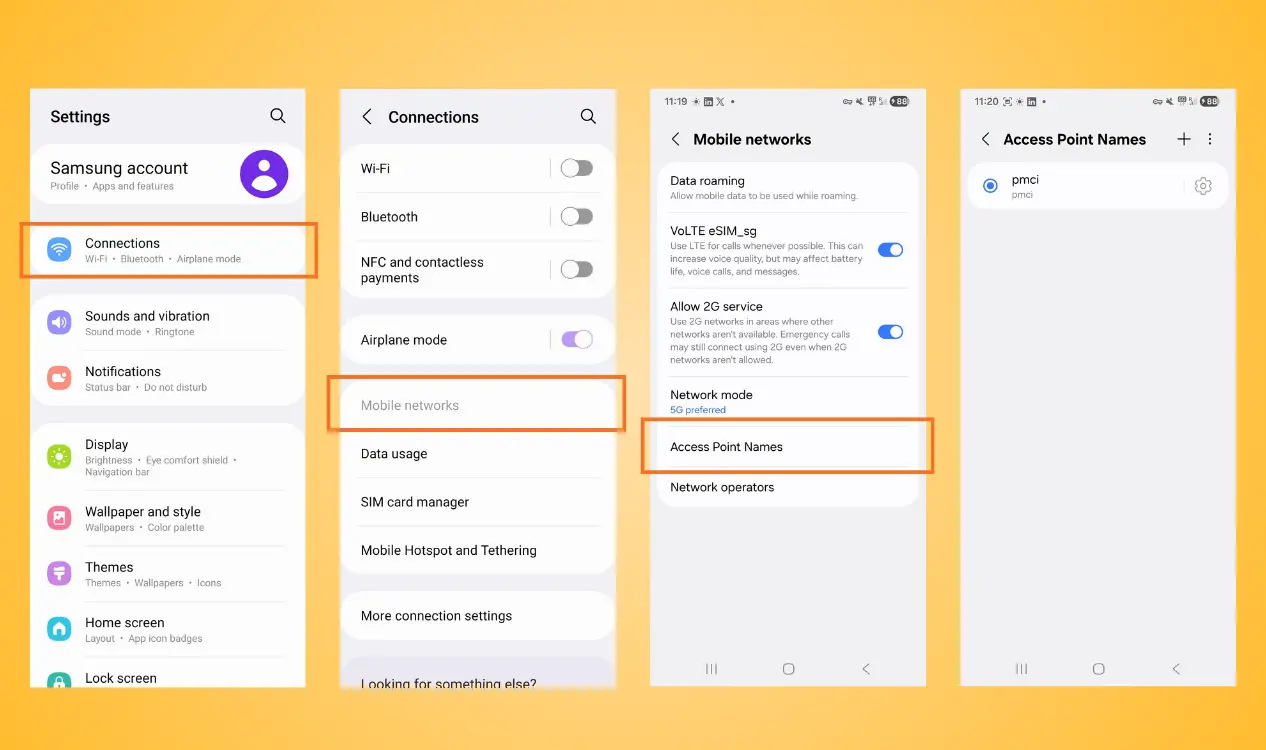
The exact steps can vary depending on your phone manufacturer, Android version, and network provider. Here using Samsung as an example:
- Open Settings → Tap Connections
- Tap Mobile Networks
- Select Access Point Names
- Check the Android APN settings currently select
How to Configure APN?
After checking, you may need to configure APN. In many cases, your carrier or eSIM provider automatically sends the required APN configuration to your phone. You just need to simply install and activate your data plan and wait for the connection. However, if your phone connects to a mobile network but cannot access the internet, or the carrier allows you to do APN editing, you have to configure it manually.
1.APN settings on iPhone
Here shows the manual process of access point names on iPhone. If everything works, you don’t need to configure that.
- Step 1: Open the APN settings as the checking steps
- Step 2: Enter the APN Information and leave other setting blank unless provided
- Step 3: Return to the previous menu and test your mobile data connection
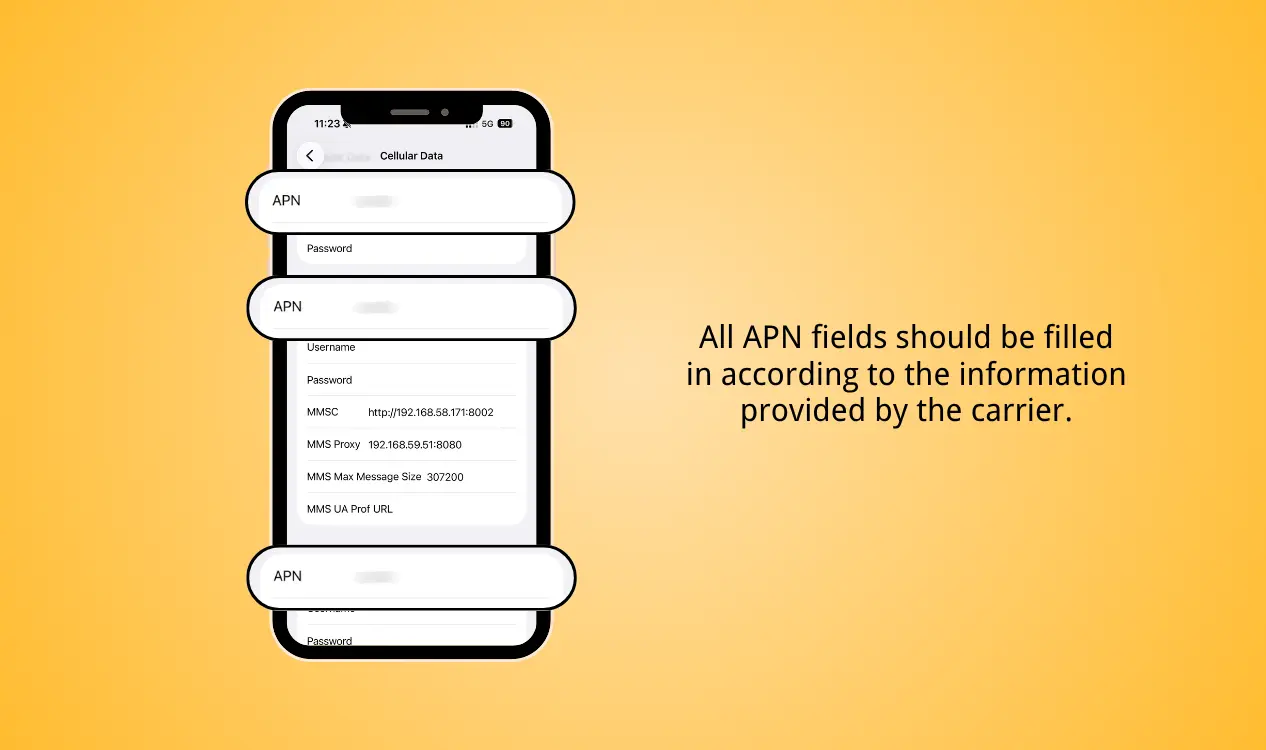
If the internet still does not work, try turning mobile data off and on again or restarting your iPhone.
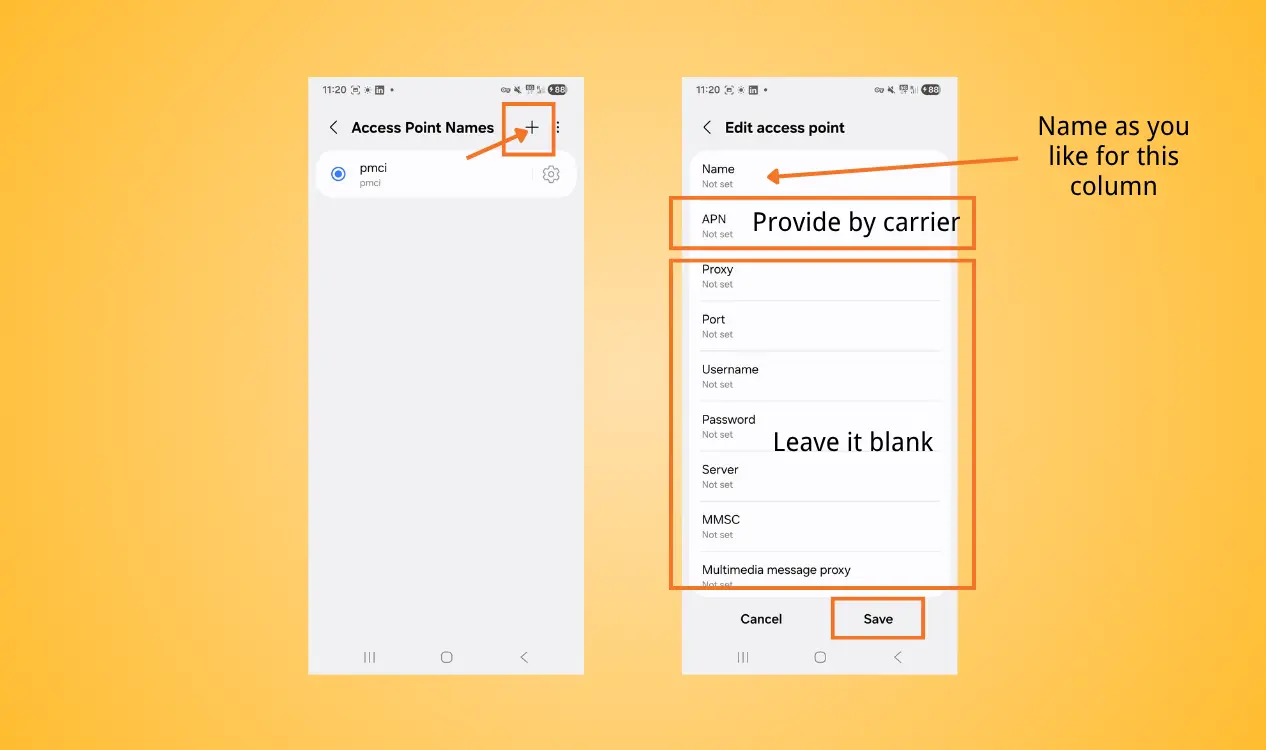
2.Android APN settings
Here using Samsung as an example to demonstrate how to set access point name manually.
- Step 1: Open Access Point Name Setting as the checking progress
- Step 2: Tap “+” to add a new APN
- Step 3: Enter the required information. You generally do not need to fill in every field
- Step 4: Tap Save
- Step 5: Select the New APN to make sure it is active
- Step 6: Test your connection
Final Thought
Understanding and configuring APN setting can help resolve mobile data connection issues. While many SIM cards and eSIMs automatically configure APN, some may require you to check and correct the settings manually.
For travelers using NPN Travel eSIM, staying connected doesn’t have to be complicated. If you encounter a connection issue, you can follow my hands-on troubleshooting guides to check your settings step by step.