eSIM Not Working?Try These Proven Solutions (2026 Guide)



Your eSIM not working for several reasons, from an incompatible device or inactive plan to incorrect network. You may see “No Service” or find that my eSIM is not working. The good news is that many eSIM problems can be fixed with a few simple checks. In this guide, I’ll walk you through the most common solutions for how to fix eSIM on iPhone and Android.
- Why is My eSIM Not Working?
- How to Fix My eSIM Is Not Working?
- How to Fix eSIM Not Working Samsung?
- How to Fix eSIM Not Working iPhone?
Why is My eSIM Not Working?
An eSIM can fail to connect or provide mobile data for several reasons. Common causes include:
- Your device does not support eSIM: Not every phone model or regional variant supports eSIM. Check your phone compatibility before purchasing an eSIM.
- Your eSIM plan is inactive or expired: The plan may have expired, run out of data, or not been activated correctly may all cause eSIM not working.
- Your phone is carrier-locked: A locked phone may prevent you from using an eSIM from another provider. Learn what a carrier lock is and how to unlock your phone.
- The eSIM profile is not installed correctly: Your eSIM may not appear properly in your SIM settings.
- The wrong SIM is selected for mobile data: This is especially common when using a physical SIM and eSIM together.
- Mobile data or data roaming is turned off: Travel eSIMs often require data roaming to be enabled.
- Your phone is connected to the wrong network: Automatic network selection may sometimes fail. eSIM says network not available before you resolve the issue.
- Outdated device software: Older software can cause compatibility or network problems.
- Incorrect APN settings: Make sure your APN settings are correct to work the mobile data.
- VPN interference: I have truly experienced that my eSIM is not working and found that some VPN configurations can interfere with your mobile connection.
- Network settings are misconfigured: Incorrect saved network settings may cause connection problems.
- Enterprise or MDM restrictions: Company-managed devices may restrict eSIM activation or cellular settings.
By following the 12 solutions above, you can quickly resolve the issue of why is my eSIM not activating.
How to Fix My eSIM Is Not Working?
You can try to find out the problems when eSIM says network not available by checking the settings one by one. Do not delete the eSIM unless necessary.
- Check Your Device’s eSIM Compatibility: Verify your phone model supports eSIM technology.
- Check Your Plan and Account Status: For NPN Travel users, you can simply check your real-time data usage on the website by your order ID.
- Make Sure Your Phone is Unlocked: Ensure your device is carrier-unlocked.
- Check Your eSIM Profile: Confirm your profile details are correct.
- Make Sure Your eSIM Is Active and Selected: Enable the line properly.
- Turn On Mobile Data and Data Roaming: Essential for international travel connectivity.
- Update Your Phone’s Software: Keep your OS up to date.
- Manually Select a Network: Switch to a supported local network provider.
- Turn Airplane Mode On and Off: Quick toggle to refresh radios.
- Disable Your VPN: Avoid routing conflicts that block data.
- Reset Network Settings: Clear corrupted network parameters.
- Check and Configure APN Settings: Ensure carrier access point names match.
- Check For Enterprise or MDM Restrictions: Remove corporate profile blocks if applicable.
How to Fix eSIM Not Working Samsung?
If your Samsung eSIM not working, follow these steps in order. Menu names can vary slightly depending on your Galaxy model and One UI version.
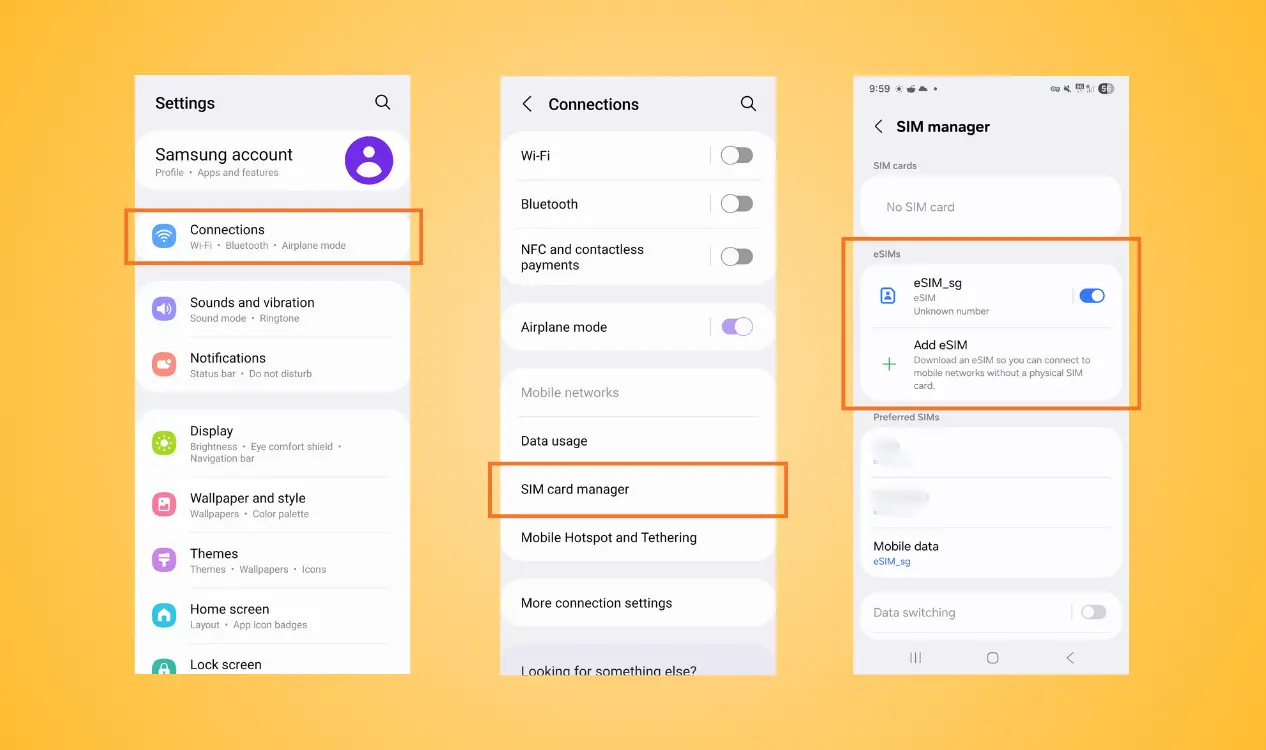
Step 1: Check If Your eSIM install successfully
Go to: Settings → Connections → SIM manager
If your eSIM doesn’t appear in the list, that means the eSIM not available to use. Install and activate the eSIM again by scanning a QR code or other methods.
Step 2: Turn On Your eSIM
In the SIM manager, select your eSIM and make sure it is enabled. If you have multiple SIMs, make sure the correct eSIM is selected for Mobile data.
Step 3: Turn On Mobile Data and Data Roaming
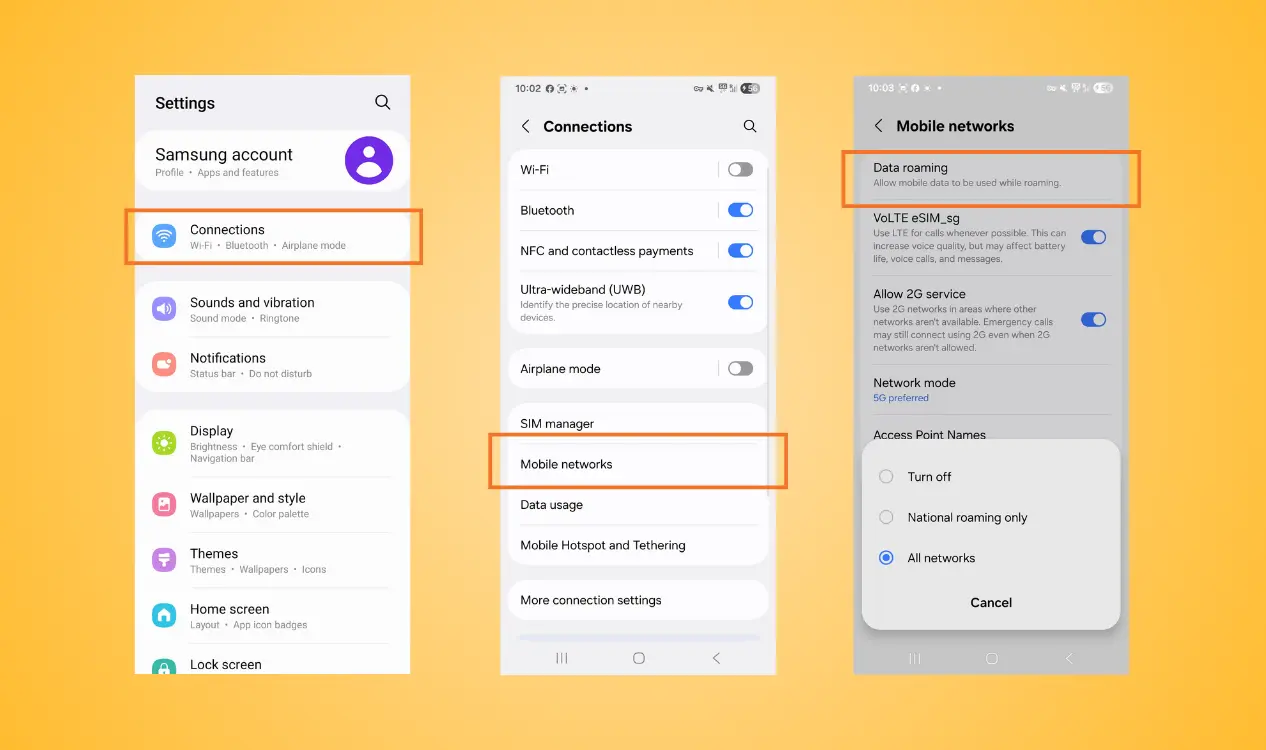
Go to: Settings → Connections → Mobile networks
Turn on Mobile data and, when required by your travel eSIM, Data Roaming.
Step 4: Select a Network Manually
Sometimes you may wonder why is my eSIM not working suddenly. It may be because of a wrong linking network automatically.
Select it manually by: Settings → Connections → Mobile networks → Network operators. Turn off automatic network selection and search for available networks. Select a network supported by your eSIM provider.

Step 5: Check the APN
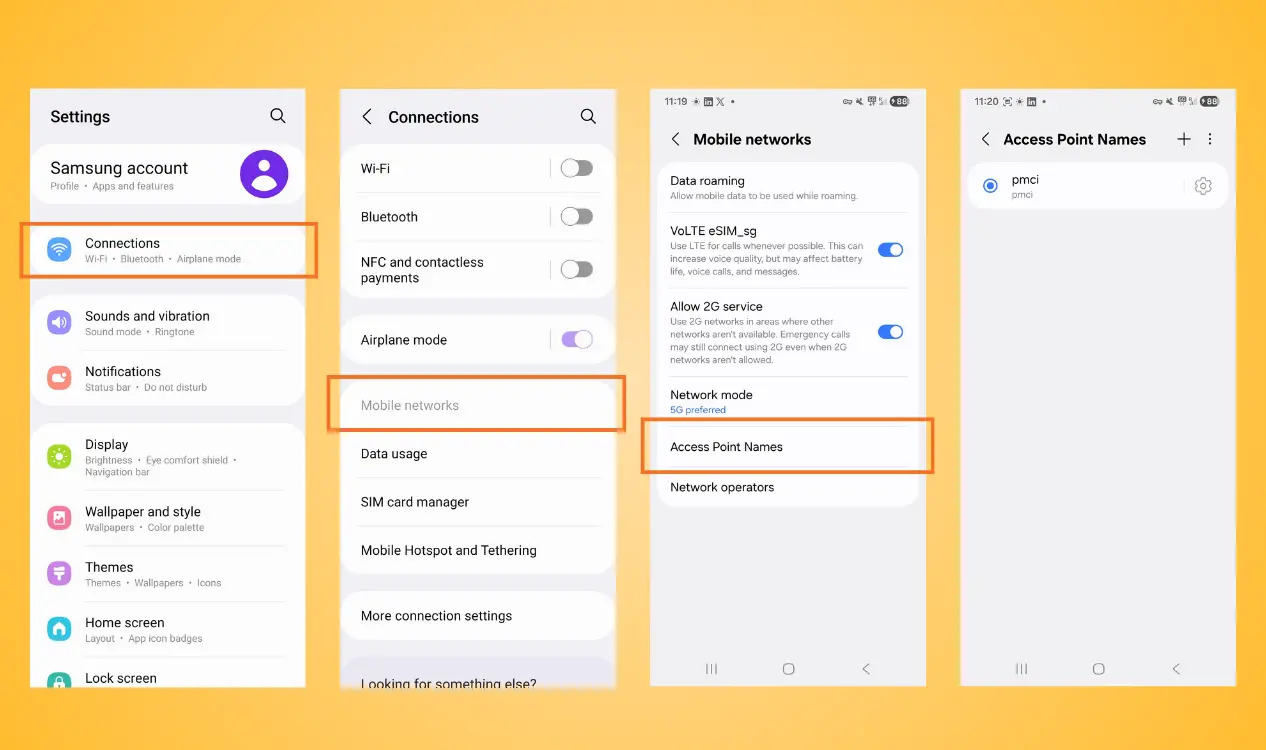
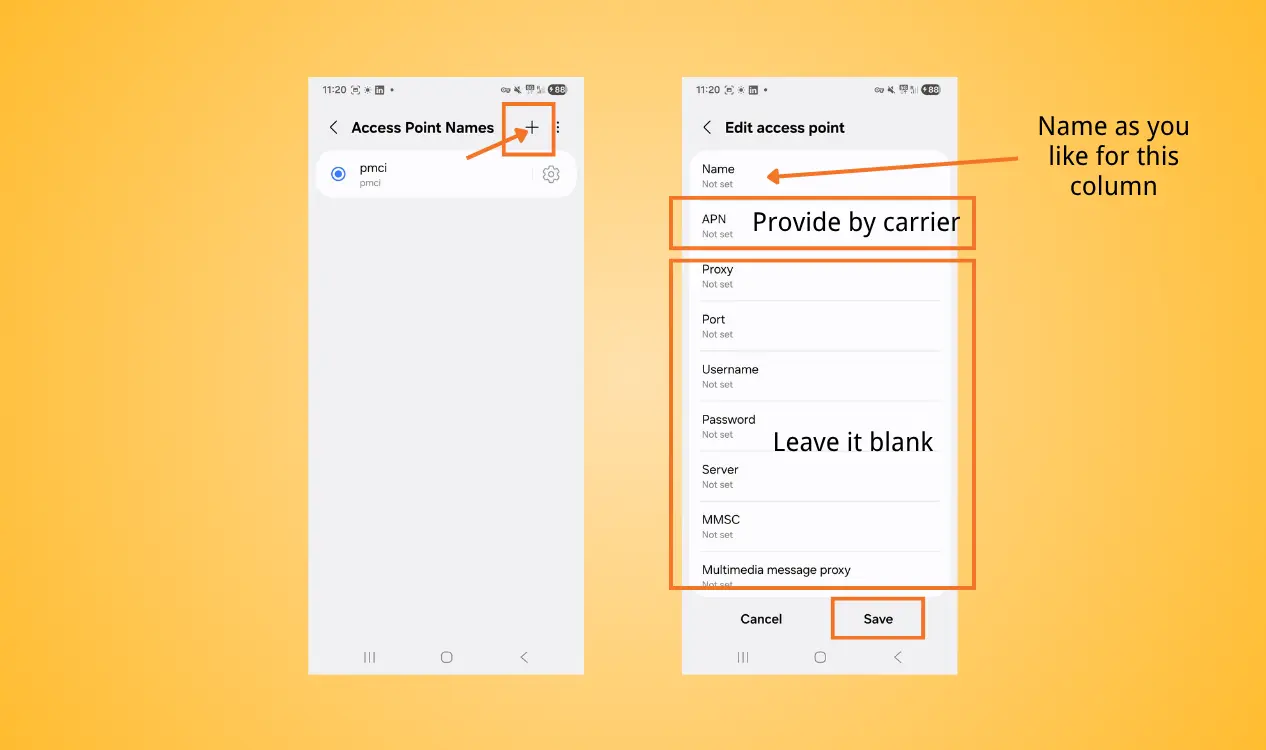
Check that the APN matches the information provided by your eSIM provider if eSIM not working Android.
The steps for Samsung are as follows: Settings → Connections → Mobile Networks → Access Point Names. Tap “+” for configuration if you find it wrong.
Step 6: Reset Mobile Network Settings
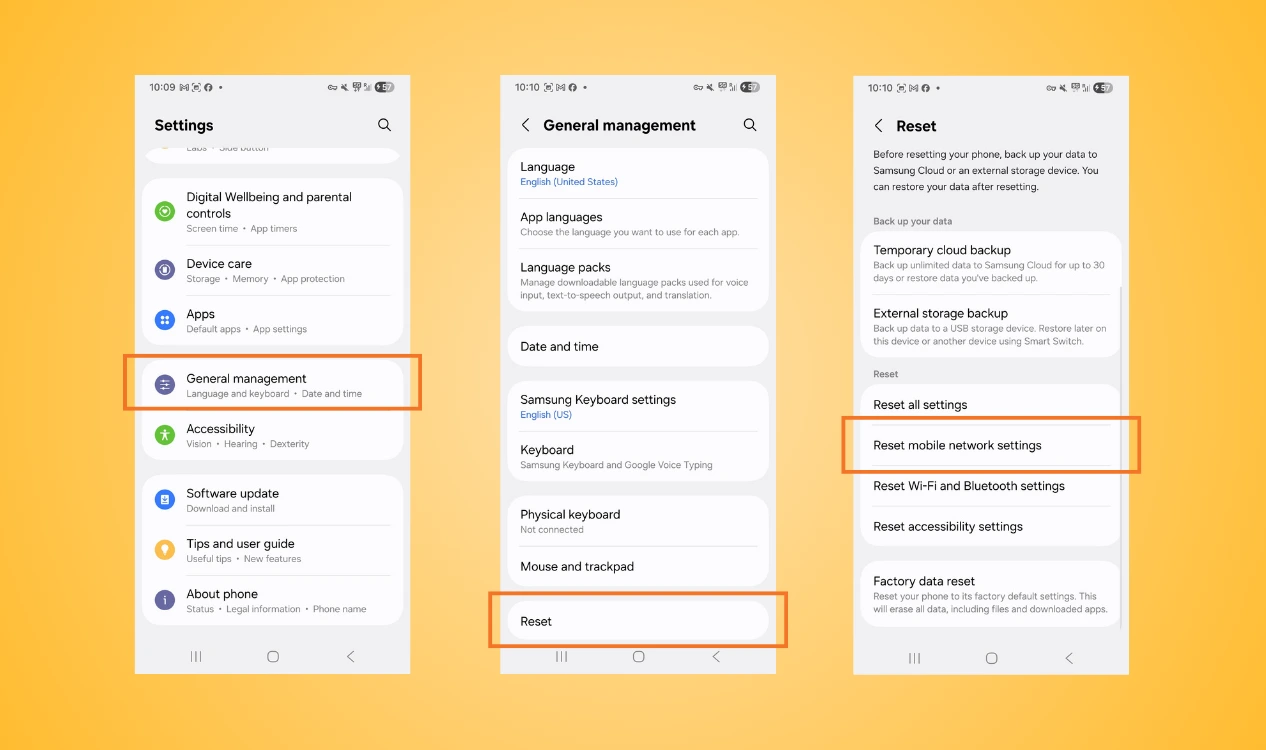
Simply go to settings and follow the steps: Settings → General management → Reset → Reset Mobile Network Settings → Reset Settings
How to Fix eSIM Not Working iPhone?
If your iPhone eSIM is not working, learn how to fix eSIM on iPhone. Try the following steps.
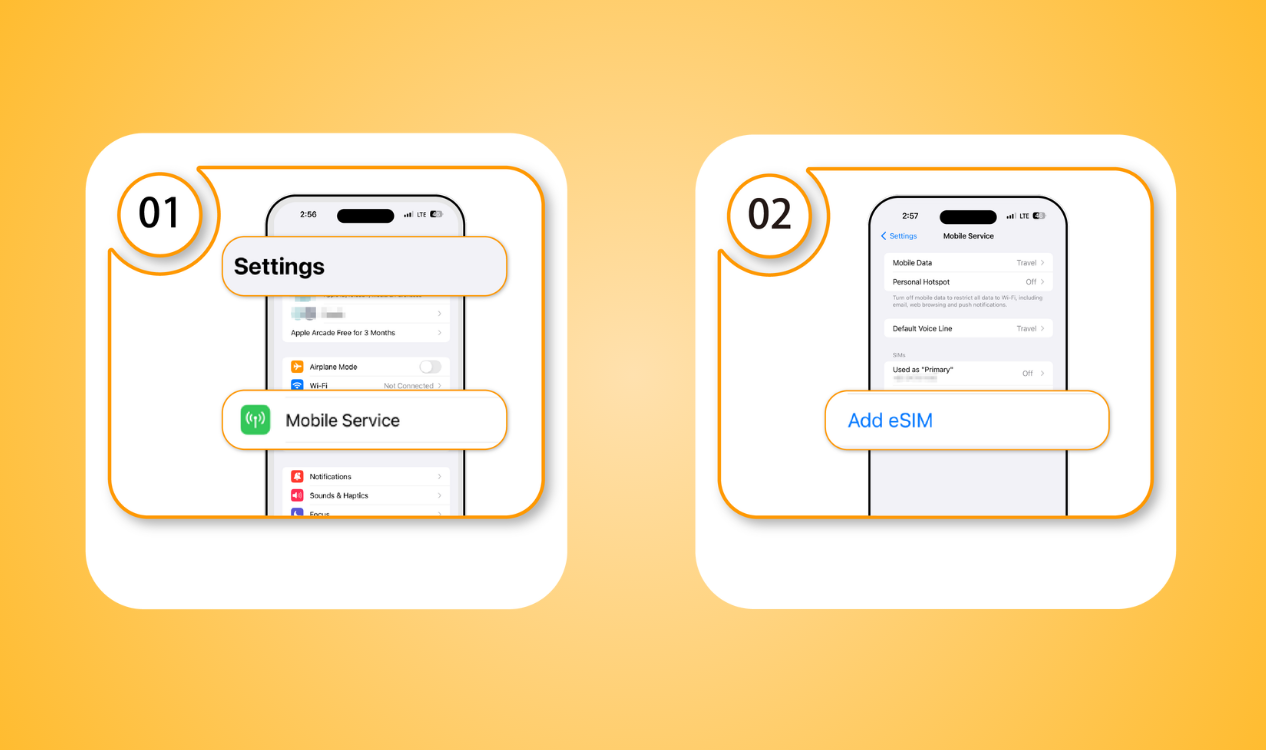
Step 1: Check Whether the eSIM Is installed
Go to: Settings → Mobile Service
Look under SIMs and check if your eSIM appears.
If the eSIM is missing, check your provider’s installation instructions rather than immediately deleting or reinstalling existing eSIMs.
Step 2: Make Sure the eSIM Is Turned On
Tap your eSIM under SIMs.
Make sure Turn On This Line is enabled.
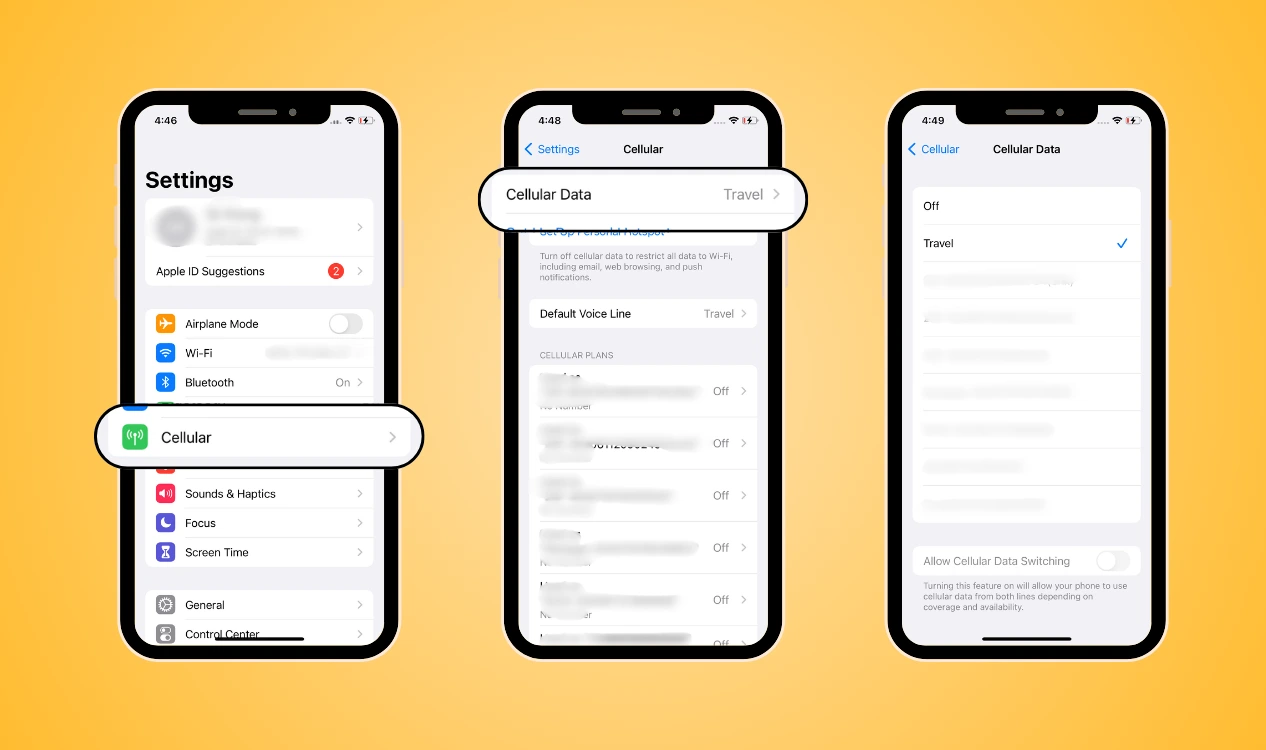
Step 3: Select the eSIM for Mobile Data
Go to: Settings → Cellular → Cellular Data
Select your travel eSIM as the line for mobile data. This is particularly important if you have both a physical SIM and an eSIM installed.
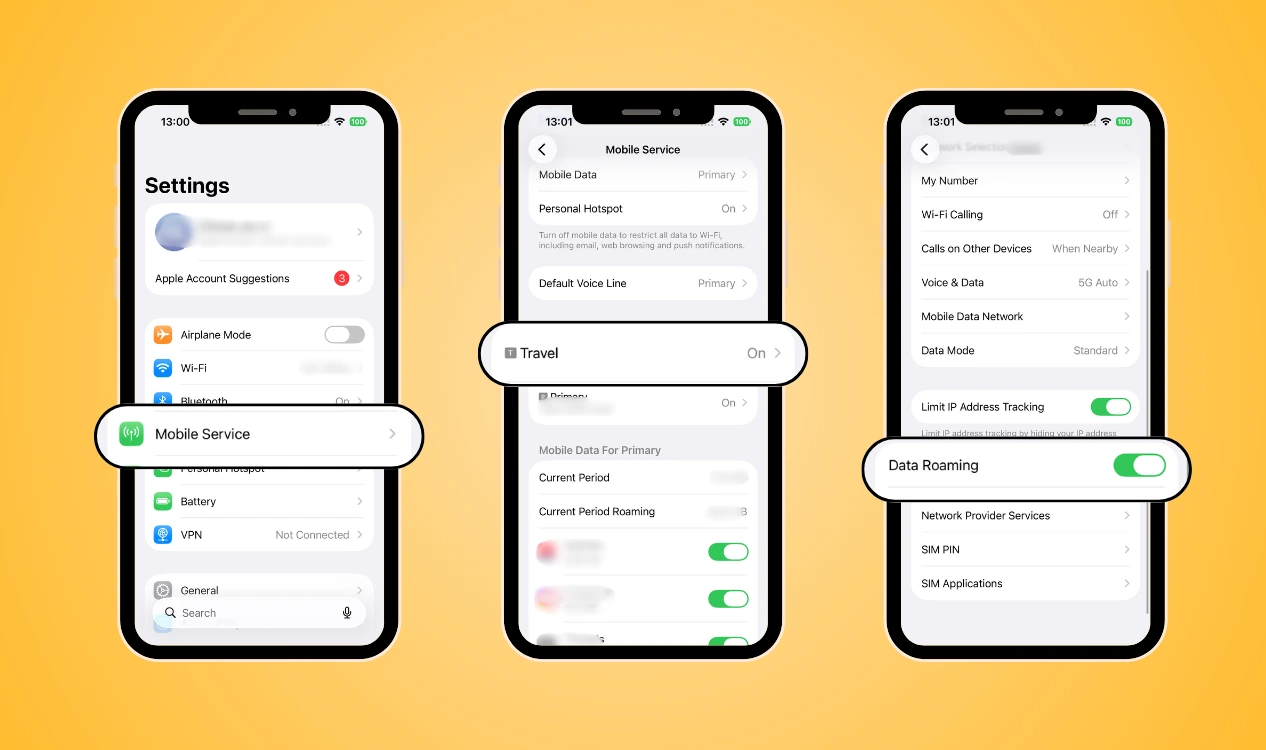
Step 4: Turn On Data Roaming
Turn on Data Roaming if your travel eSIM requires it. Only enable roaming data when you are certain you need it, to avoid unnecessary charges.
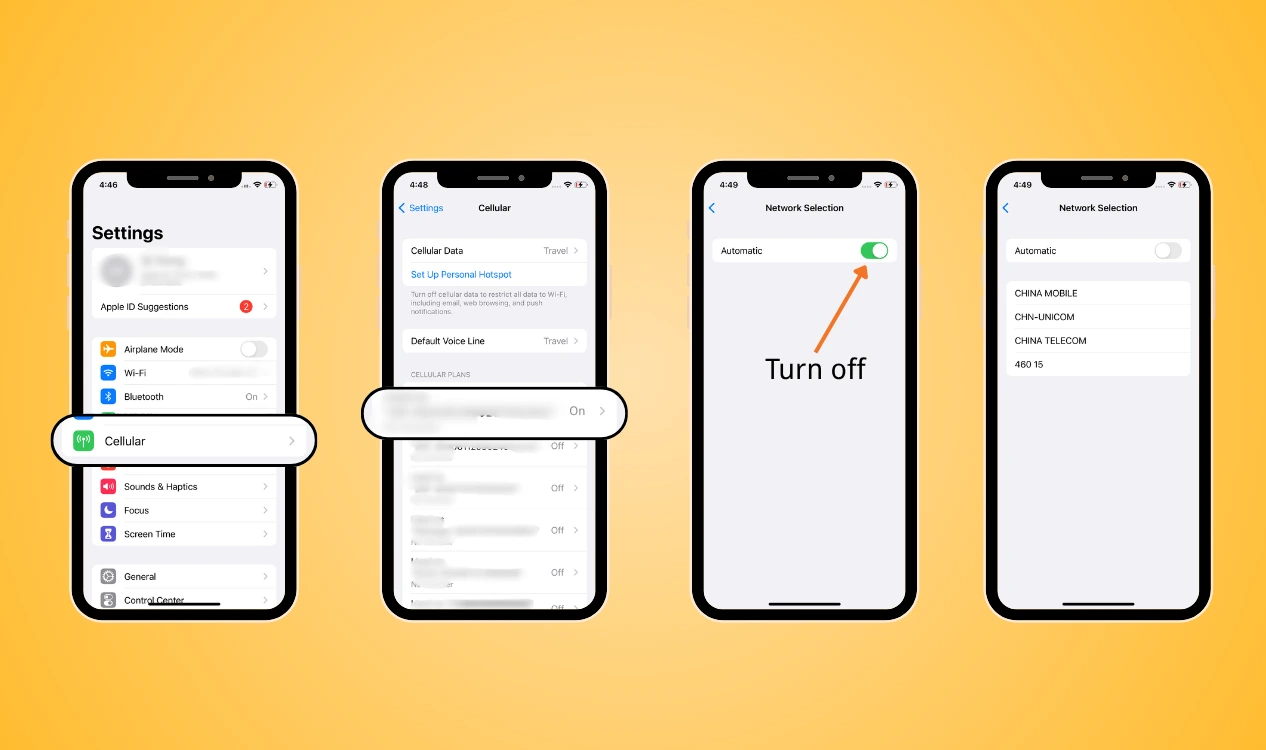
Step 5: Try a Different Network
Go to: Settings → Cellular → Your eSIM → Network Selection
Turn off Automatic and select an available supported network.
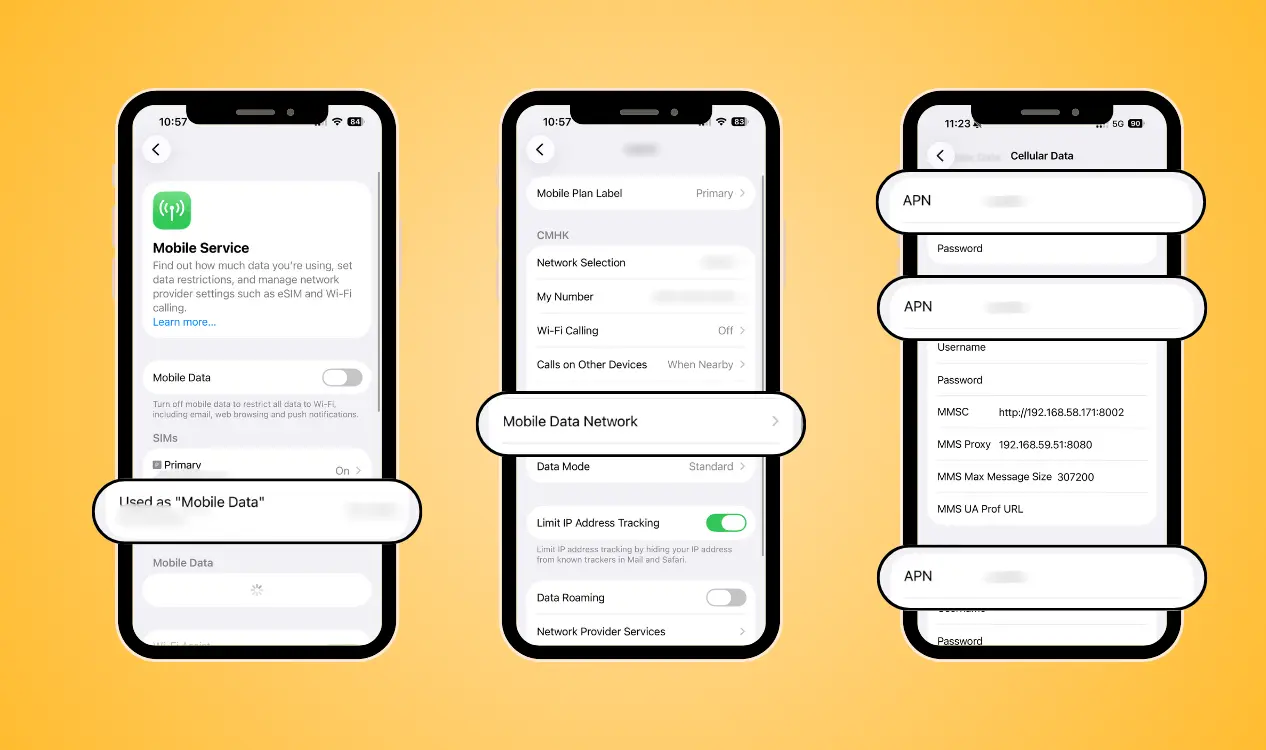
Step 6: Check the APN
If your provider requires manual APN configuration, go to: Settings → Cellular → Cellular Data Network
Enter the APN details provided by your eSIM provider.
Step 7: Reset Network Settings
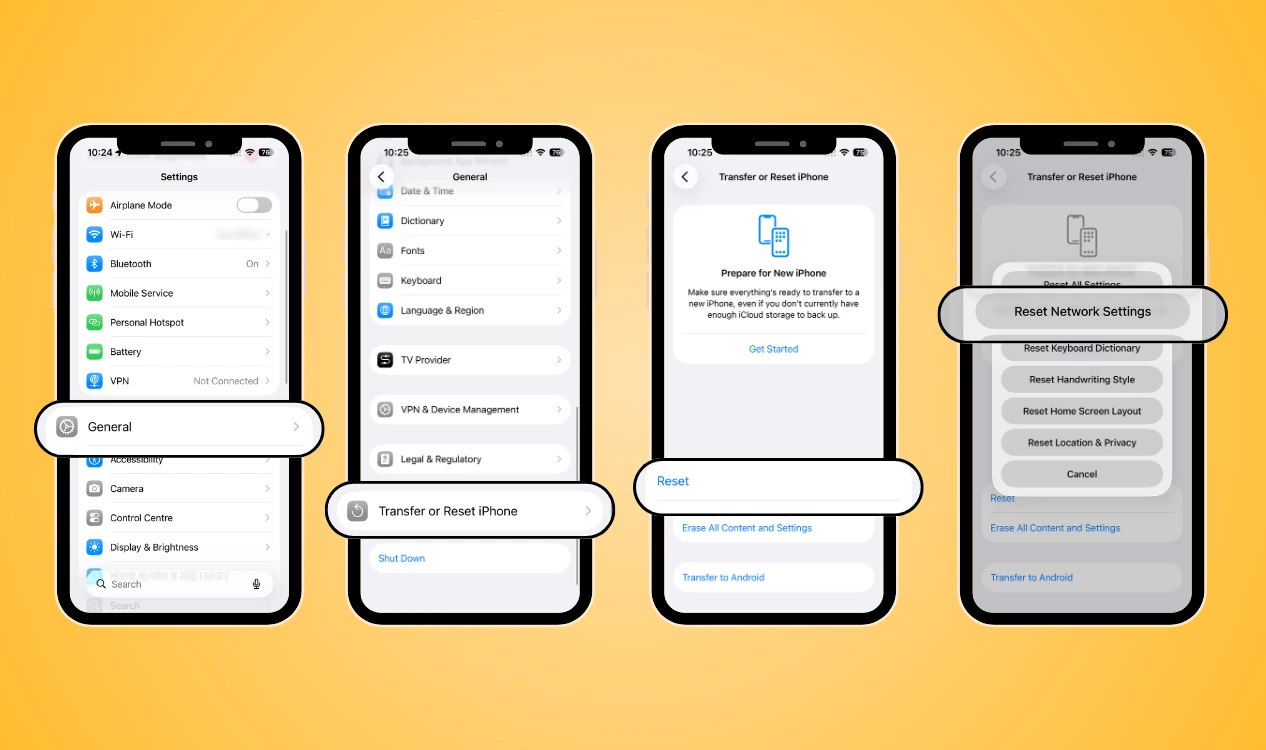
What else can I do if my eSIM isn’t working? I have to warn you that not to delete your eSIM but resets network-related configurations by the following steps:
Settings → General → Transfer or Reset iPhone → Reset → Reset Network Settings
Conclusion
An eSIM not working issue can be frustrating, especially when you have just arrived at your destination. Check through this guide to learn how to fix eSIM on iPhone and Android, and remember do not delete your eSIM unless your provider specifically asks you to do so.
If you want a more reliable travel experience, NPN Travel is worth considering. Choose NPN Travel and enjoy your trip without worrying too much about my eSIM is not working issues.