

How to Activate eSIM? A Beginner-Friendly Setup Guide



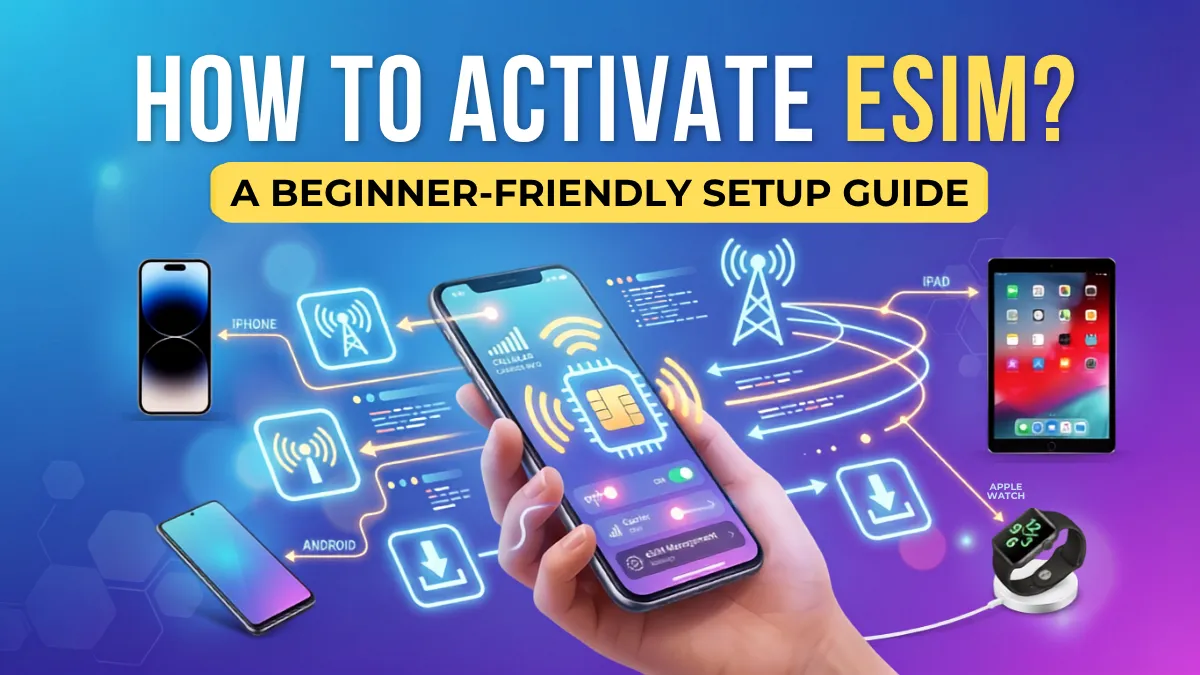
eSIM makes it possible to connect to a mobile network without inserting a physical SIM card. Whether you are preparing for a trip or switching to a new mobile plan, activate eSIM is usually straightforward. In this guide, we’ll explain how to activate eSIM step by step on iPhone, Android, iPad and Apple Watch, so you can get connected with less hassle.
- How to Activate eSIM on iPhone?
- How to Activate eSIM on Android?
- How to Activate eSIM for iPad?
- How to Activate eSIM in Apple Watch?
How to Activate eSIM on iPhone?
Before activating eSIM on iPhone, there are a few things you should check. Make sure the following settings are done:
- Check that your iPhone supports eSIM
- Make sure your iOS is up to date
- Confirm that your eSIM provider supports your destination
- Connect your iPhone to Wi-Fi or another available internet connection
- Keep your eSIM activation information accessible
After confirming your device compatibility, learn how to set up eSIM on iPhone. For most travel eSIMs, using a QR code is one of the simplest methods. Follow the steps carefully.
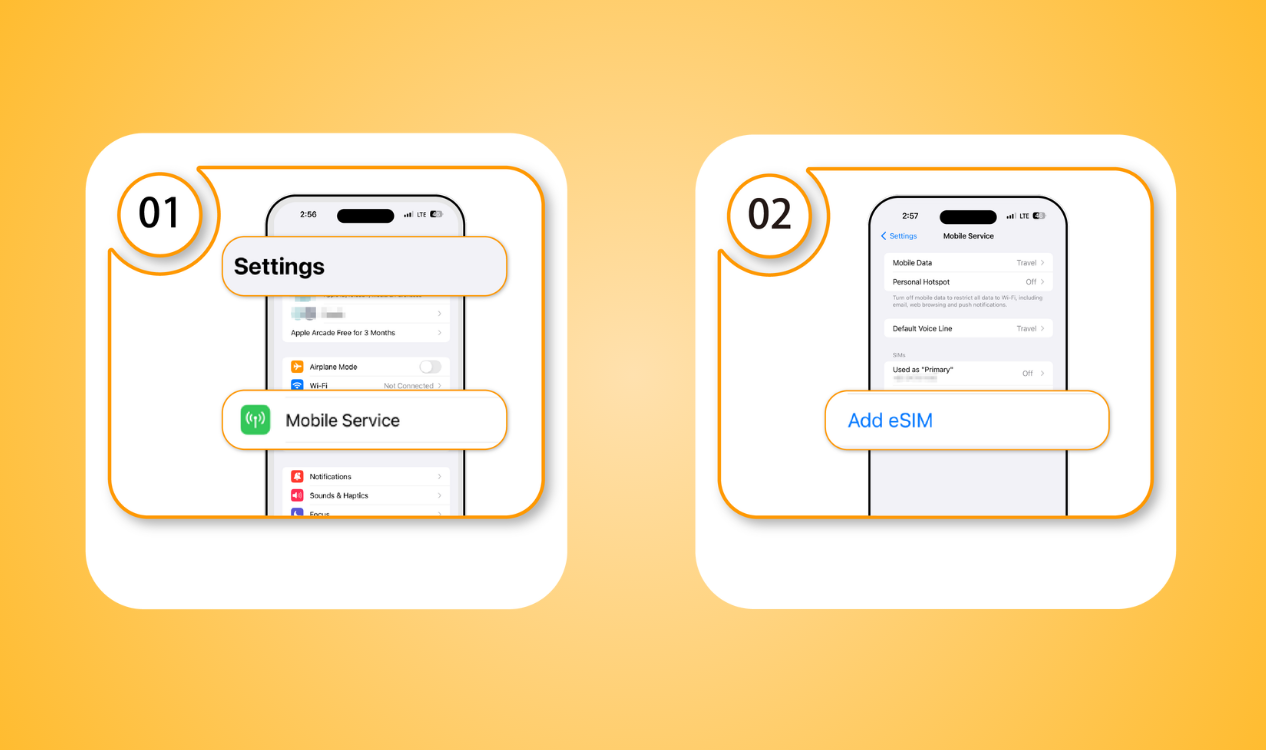
- Step 1: Open Settings → Mobile Cellular
- Step 2: Add an eSIM
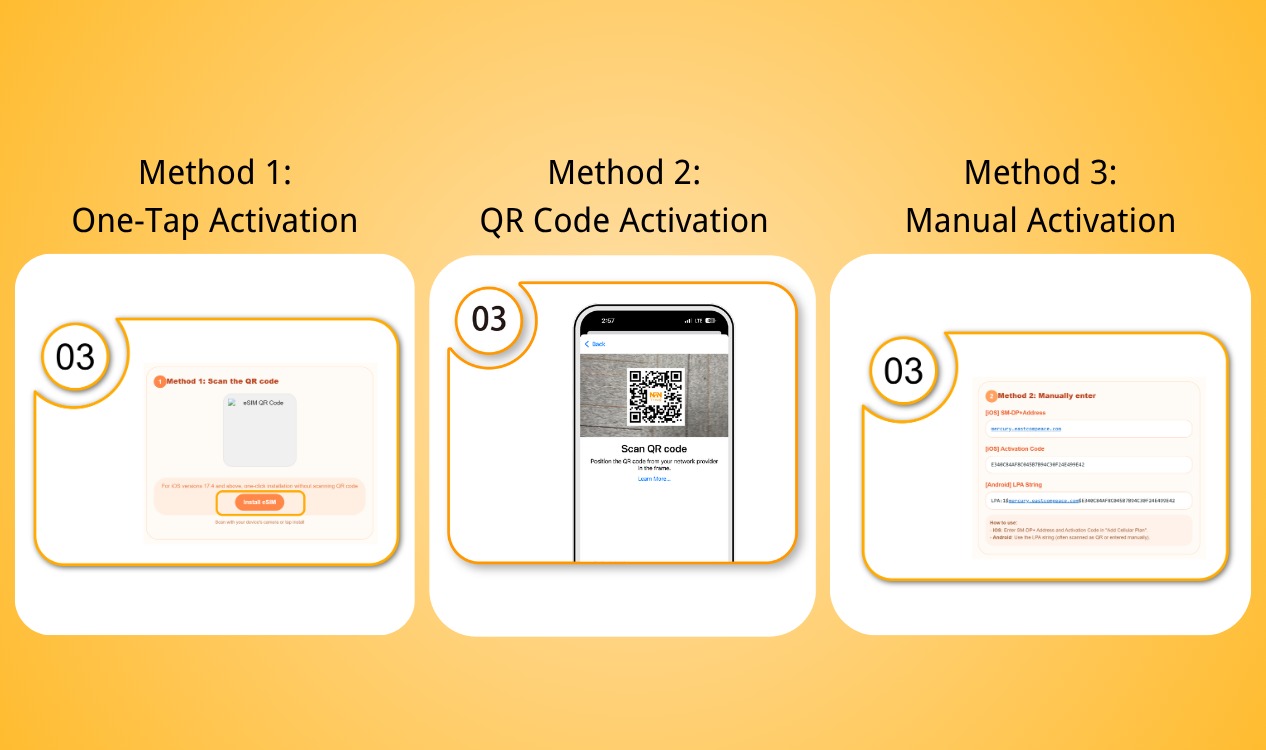
- Step 3: Activate eSIM on iPhone using one of the methods out of three.
- Step 4: Choose your mobile data line
- Step 5: Turn on data roaming if required
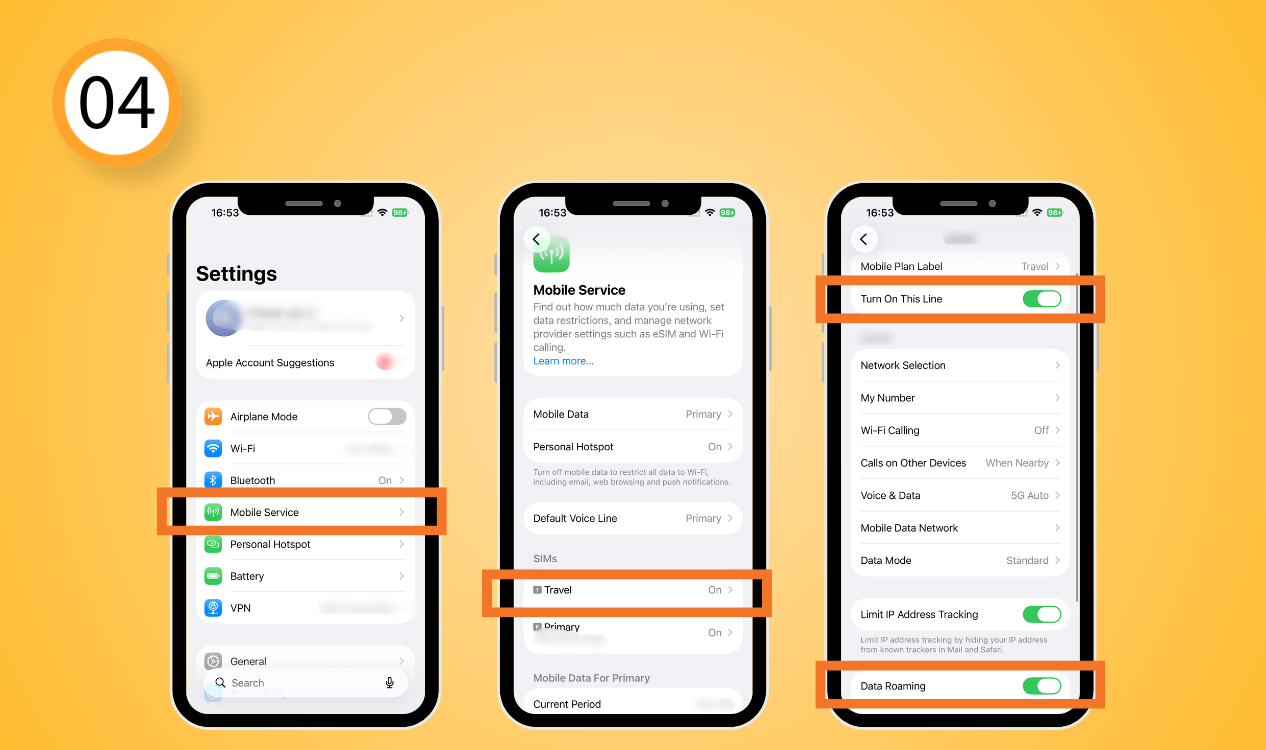
Note: Installing eSIM and activating eSIM on iPhone are not always exactly the same thing. For NPN Travel eSIM, your plan starts counting once it connects to an internet and has the data consumption.
How to Activate eSIM on Android?
Android phones from different manufacturers can have slightly different menus. Samsung Galaxy, Google Pixel, and other Android devices may use different names for the same settings.
Before you begin, check the follow:
- An Android phone that supports eSIM
- The latest available software update
- An eSIM plan from a compatible provider
- Make sure a stable and reliable Wi-Fi connection before installing eSIM
- Your eSIM information is ready
The general process is similar to add eSIM to Android. Here using activate eSIM Samsung as a demonstration.
- Step 1: Settings → Connections → Tap SIM Manager
- Step 2: Add eSIM
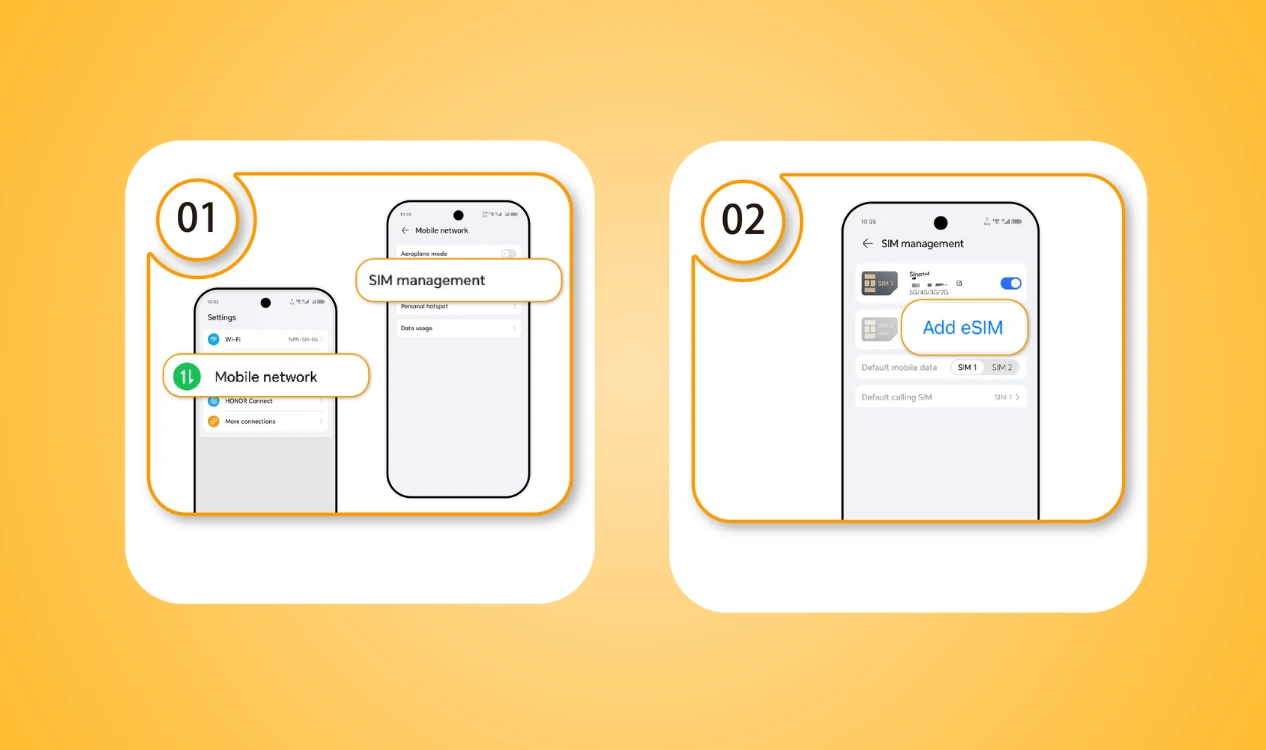
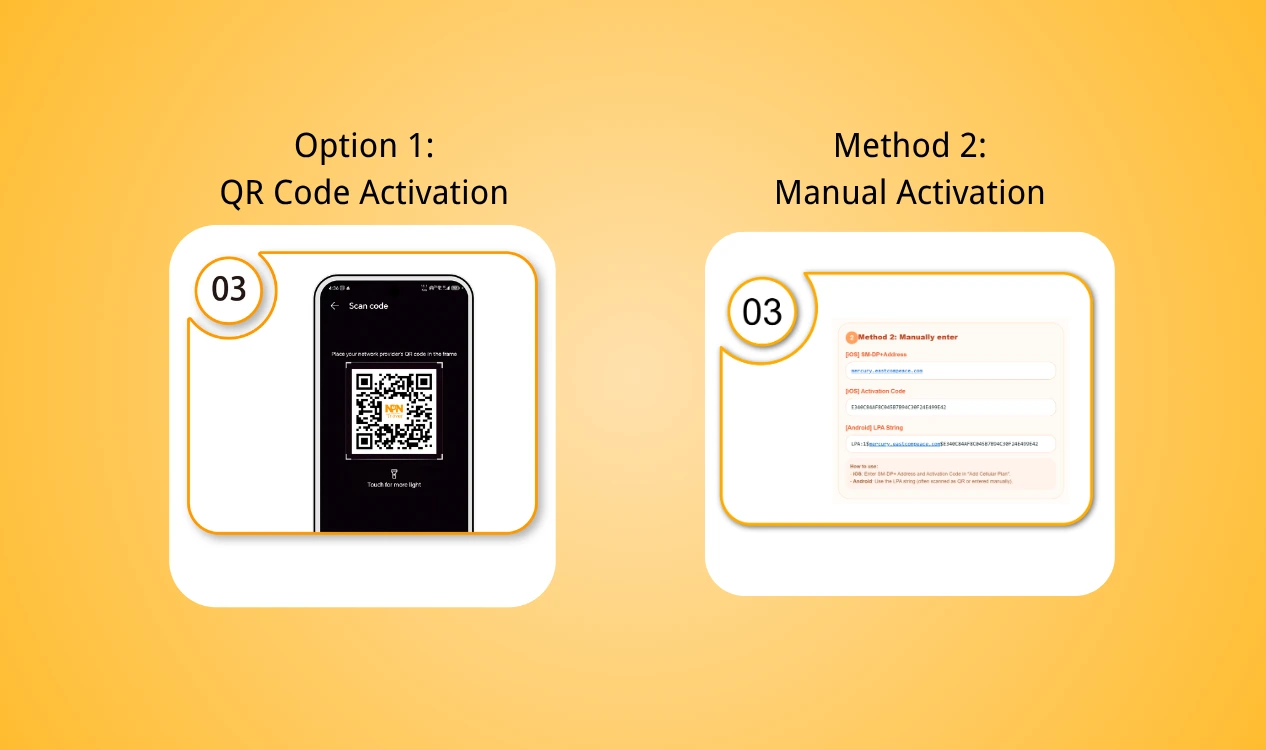
- Step 3: Follow the on screen instruction of how to install eSIM on Android. There are usually two methods.
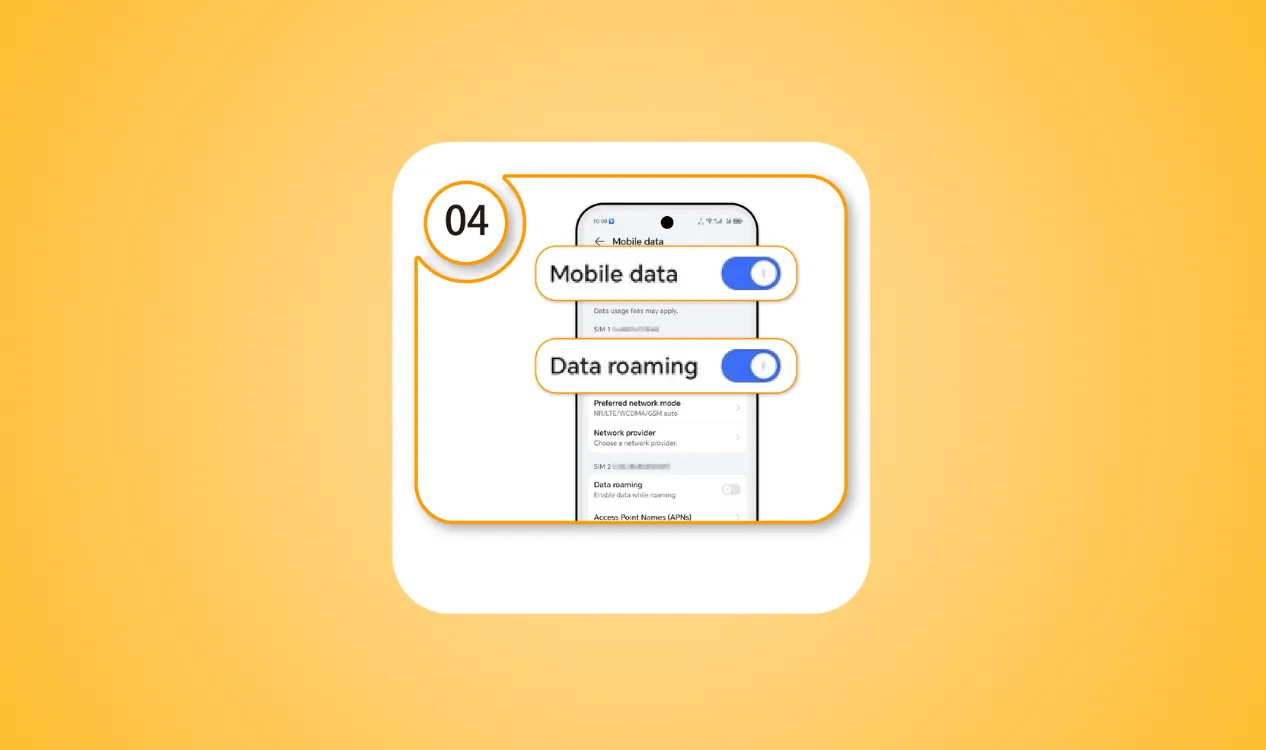
- Step 4: Select your eSIM as your preferred SIM for mobile data and open data roaming once you arrived the destination.
Note: If you cannot install or activate eSIM, there may be some issues. You can try to fix by simple checks instead of deleting the eSIM.
How to Activate eSIM for iPad?
Not every iPad supports cellular connectivity or eSIM. Apple’s current iPad guidance includes a range of cellular iPad Pro, iPad Air, iPad, and iPad mini eSIM models, but availability can vary by model and region.
This are the models compatible with eSIM on iPad:
- iPad Pro 12.9-inch (6th generation)
- iPad Pro 11-inch (4th generation)
- iPad Air (5th generation)
- iPad mini (6th generation)
Instead, make sure:
- Update your iPadOS if an update is available
- Check that your provider supports eSIM for iPad
- Prepare your eSIM information
- Connect your iPad to Wi-Fi if required
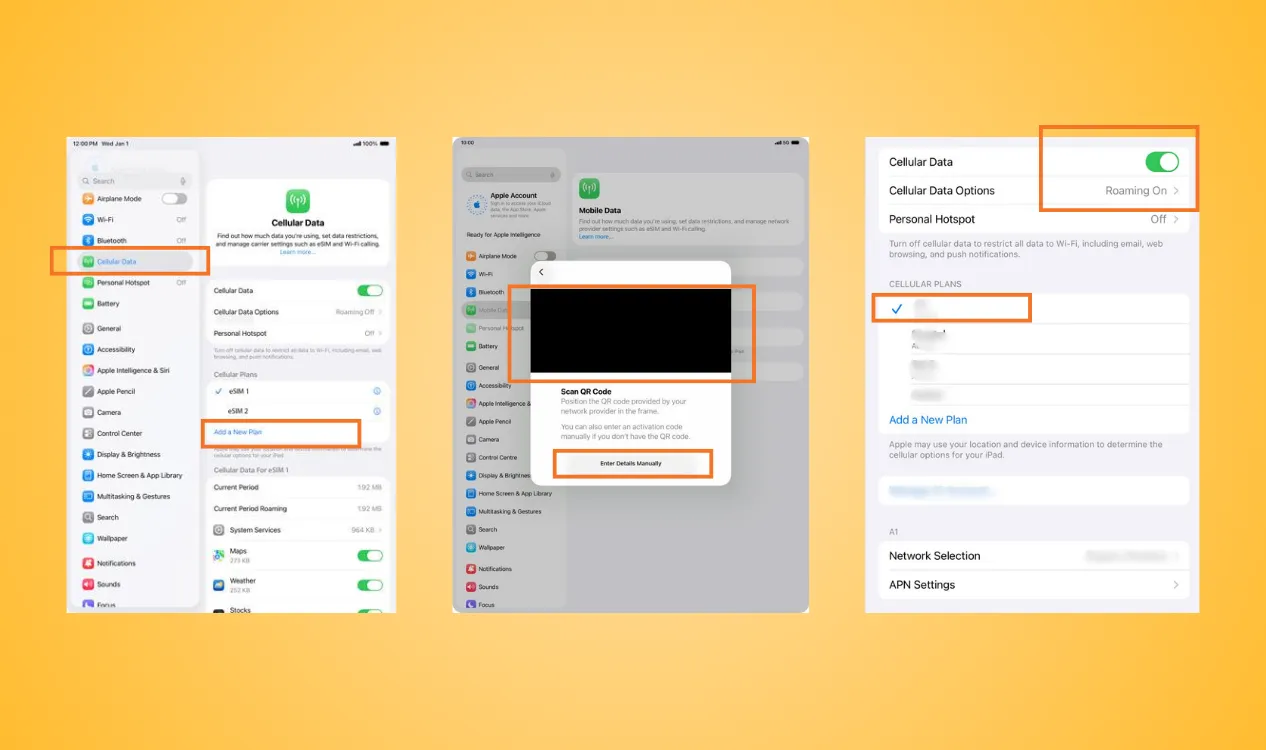
An iPad eSIM is primarily used for cellular data. Your available features depend on your iPad model, provider, and mobile plan. Follow the hand-on steps learn how to activate eSIM on iPad:
- Step 1: Settings → Mobile Data
- Step 2: Add eSIM
- Step 3: Choose an eSIM setup method. It should be the same as iPhone eSIM activation.
- Step 4: Select the correct plan and open data roaming
How to Activate eSIM in Apple Watch?
Activating cellular service on an Apple Watch works a little differently from activating a travel eSIM on an iPhone or Android phone.
What to check before activating eSIM Apple Watch?
- Make sure your Apple Watch is a GPS + Cellular model
- Make sure your carrier supports Apple Watch cellular service
- Make sure your iPhone and Apple Watch have updated software
- Check that your mobile plan is eligible
- Keep your iPhone and Apple Watch nearby during setup
You can activate cellular service when you first set up your Apple Watch. If you skipped this step, you can still add it later. Learn how to activate eSIM on Apple Watch.
- Step 1: Open the Apple Watch App on your iPhone
- Step 2: Tap My Watch → Cellular
- Step 3: Tap Set Up Cellular and follow the instructions provided by your carrier
- Step 4: Sign in to activate the plan
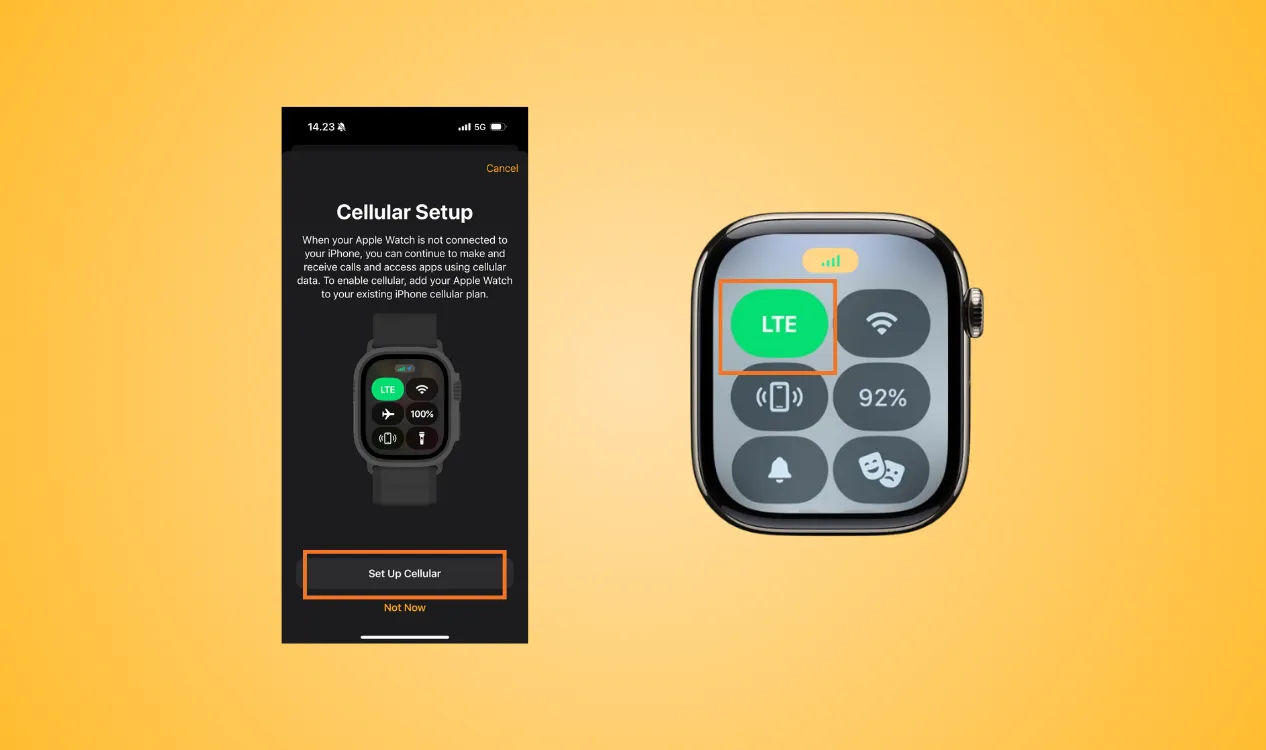
Tips: A regular travel eSIM designed for smartphones may not work on Apple Watch. Check with your carrier before purchasing a plan specifically for your eSIM Apple Watch.
Final thought
Activating eSIM on iPhone and Android devices may look complicated at first, but the process is usually simple once you know the right steps. Before getting started, always check your device compatibility, prepare your eSIM information and connect to a stable Wi-Fi network.
For travelers, NPN Travel makes activate eSIM more quickly and easier on compatible devices. Follow the provided setup instructions to learn how to activate eSIM and get connected without worrying about complicated activation steps or common setup mistakes.


